
Step 1: Go to Discounts
Navigate to Finance → Discounts and Configuration
Click Create Discount
Step 2: Set General Settings
In the General section:
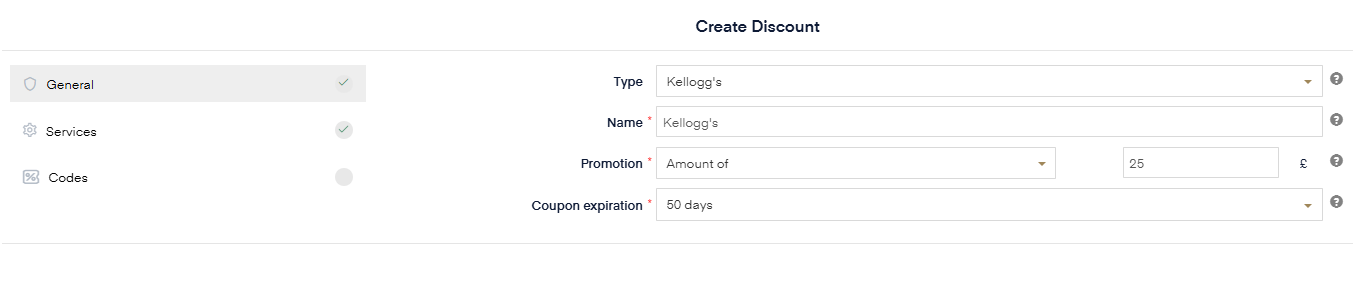
Set Type to Kellogg’s
Add a name (e.g. Kellogg’s Full Discount)
Step 3: Set the Discount Value (Fixed Amount)
Go to the Promotion section:
Select Fixed Amount
Enter the full price of the programme (e.g. £25 as shown above)
This ensures that when a code is used, it covers the full cost of the programme.
Step 4: Upload Discount Codes
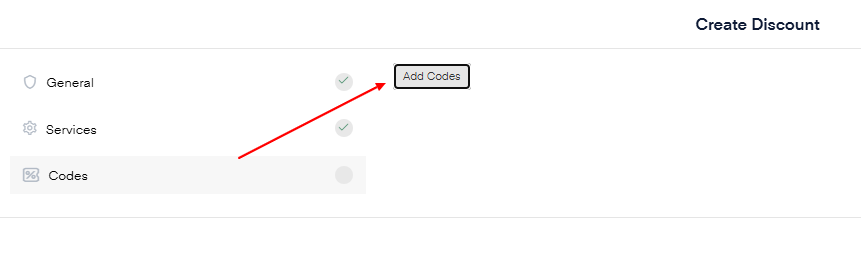
Go to the Codes / Bulk Upload section
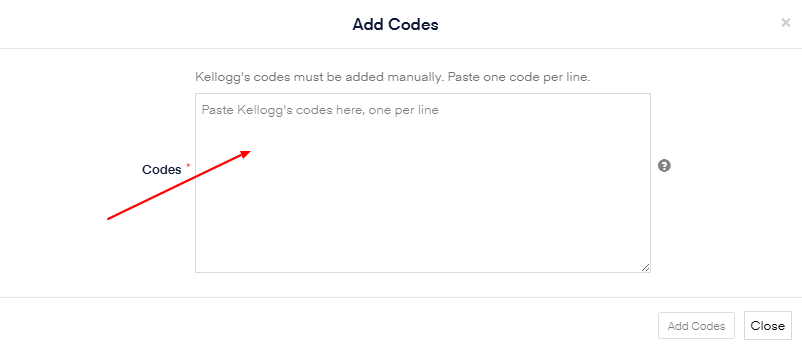
Upload or paste all Kellogg’s codes
Each code must be unique
Step 5: Attach to Programmes (services)
Select the programme(s) the codes should apply to
Step 6: Activate and create
Ensure the discount is active and within the batch period (P1 Expires 21st of May and P2 expires 1st of September).
- Once everything is set up correctly - Click Create
Result

Customers can enter their code at checkout and the price will be reduced to £0 (fully covered).