
Custom Filters allow you to create and manage personalised filters for your programmes on your booking platform. These filters help you categorise programmes in a meaningful way, making it easier for customers to browse and find what they’re looking for.
Filter Types
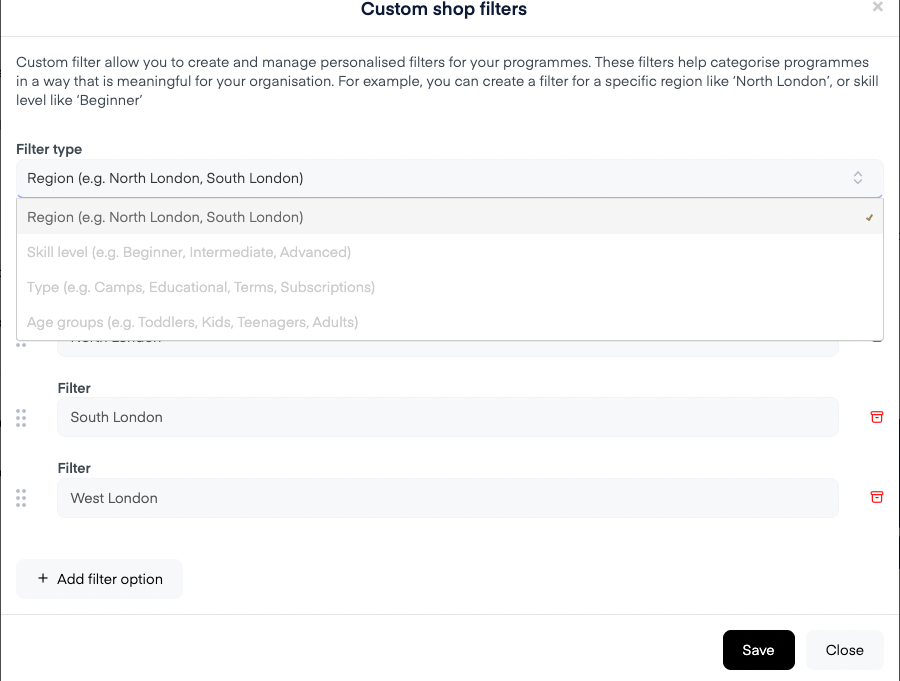
When setting up a new filter, you can choose from the following types:
Region – e.g. North London, South London, Cambridgeshire
Skill level – e.g. Beginner, Intermediate, Advanced
Type – e.g. Camps, Educational, Terms, Subscriptions
Age groups – e.g. Toddlers, Kids, Teenagers, Adults
Once you select the filter type, you can choose the filter names as you prefer.
The example below shows the filter type dropdown where you select your preferred filter category.
How to Set Up Custom Filters
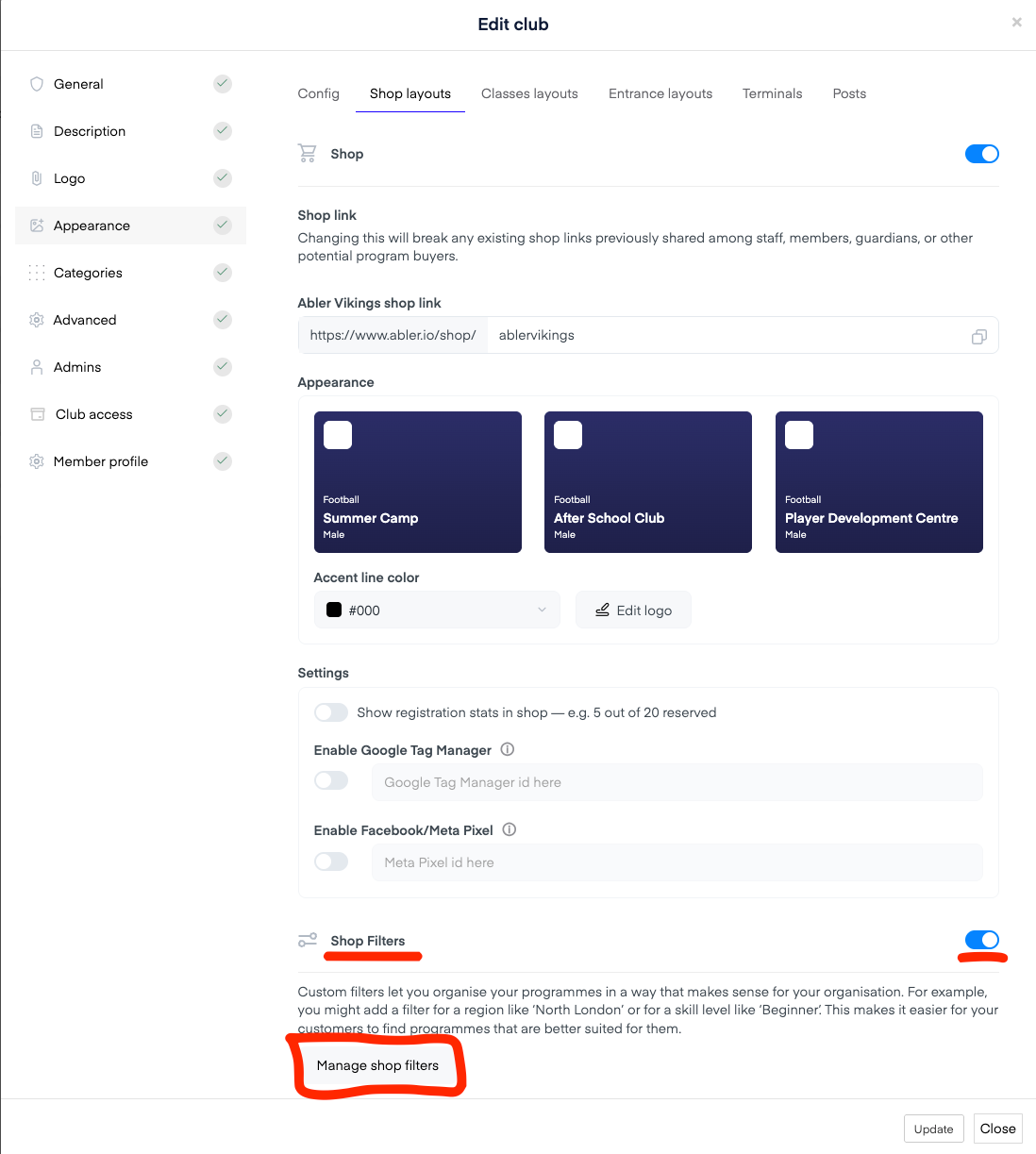
Click on your organization name in the top left corner, then select Edit → Edit Club.
Under Appearance → Shop Layouts, scroll down to “Manage filters”
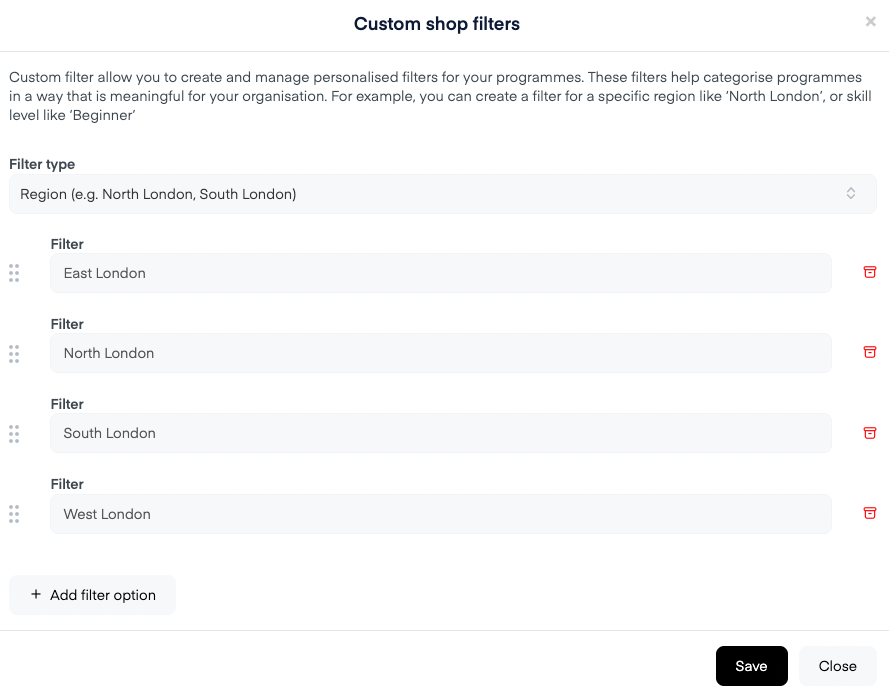
Click Add Filter.
Select a Filter Type from the dropdown.
Add your desired filter values (for example, “North London” or “Beginner”). You can choose as many as you want.
Click Save.
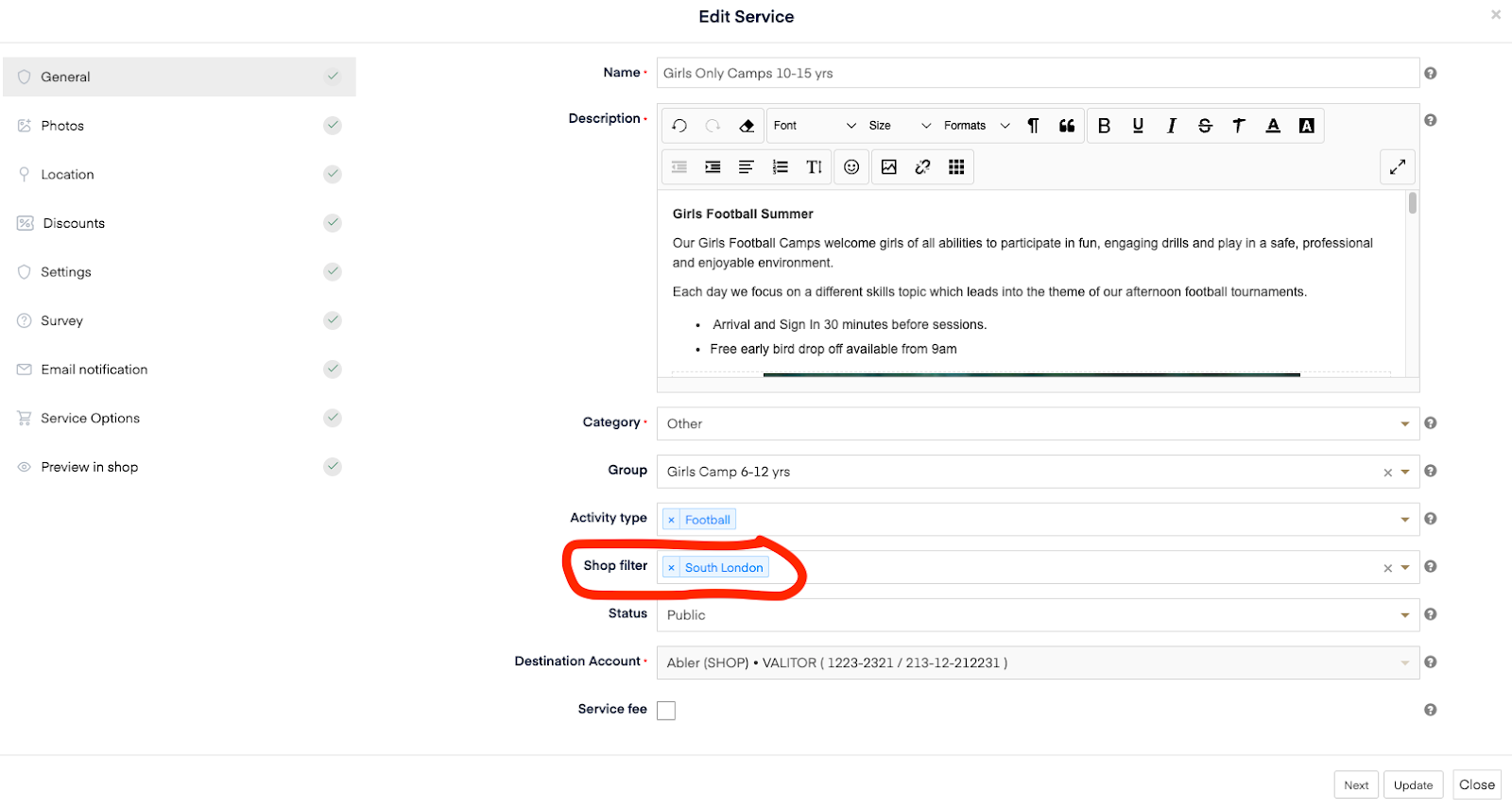
Once your filters are created, you can apply them when creating or editing a programme (service).
How It Appears on the Booking Platform
On your public booking platform, customers will be able to use these filters — along with venue and activity type — to refine their search and find the most relevant programmes.
Here is an example: https://www.abler.io/shop/ablervikings/