
Registering a Member for a Service
As a club administrator, you can register members for a service directly in Abler. Once registered, the system automatically generates an invoice that appears under Unpaid in the Abler app or under Invoices in Abler Shop.
For more details on how members can complete their payment, see Paying an invoice in Abler.
Steps to Register a Member
Go to the Service Overview
In the left-hand menu, select Service Overview, then choose the service you want to register the member for.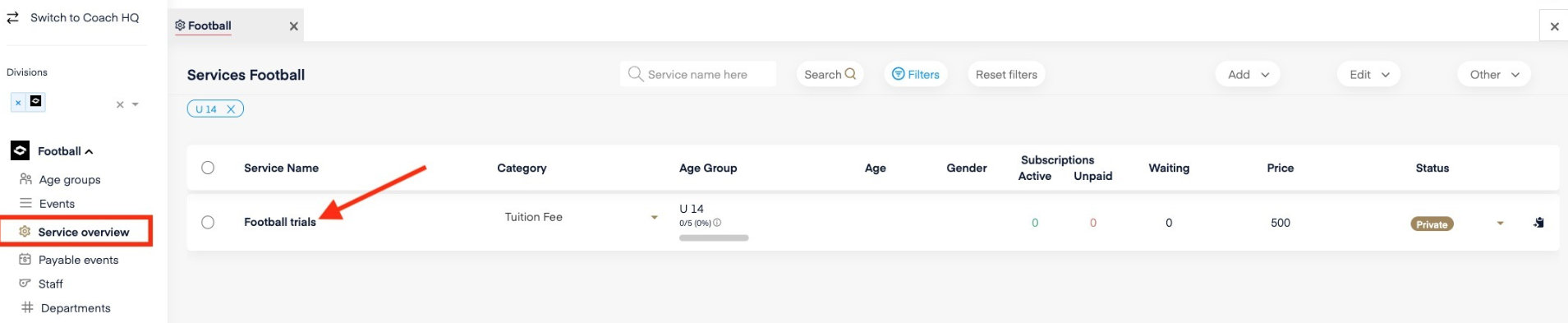
Add the Member (if not already listed)
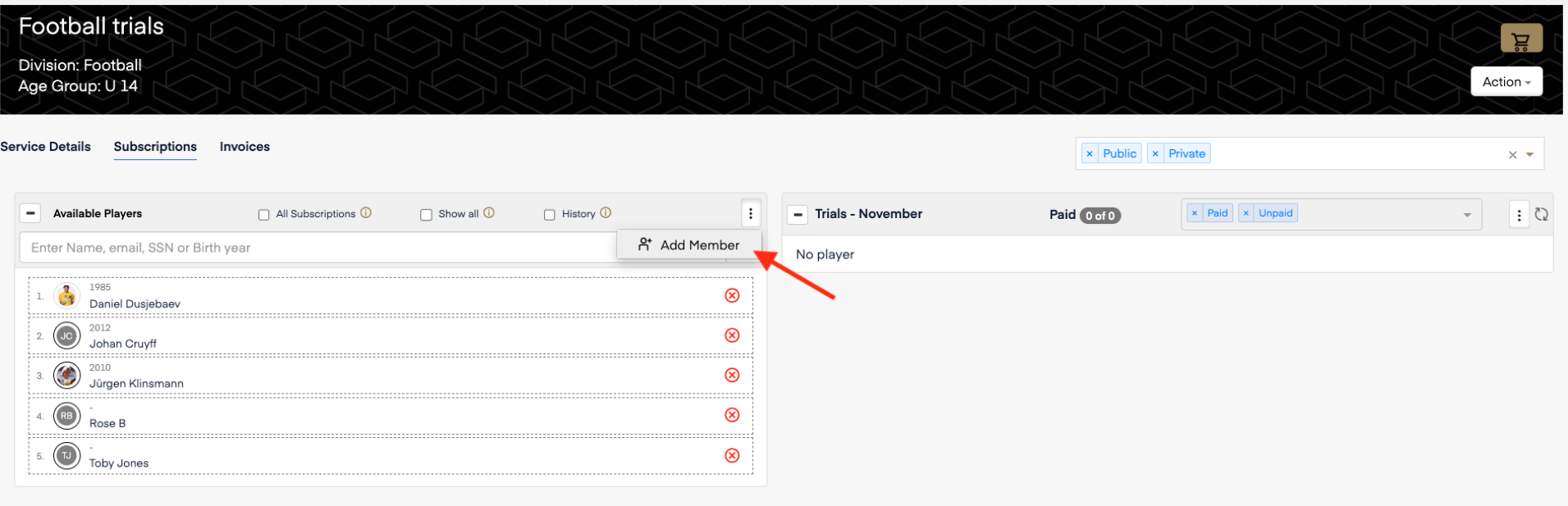
If the member is not shown in the available players list, click the three-dots icon at the top of the list and select Add Member.
Use the search field to find the member by name or email.
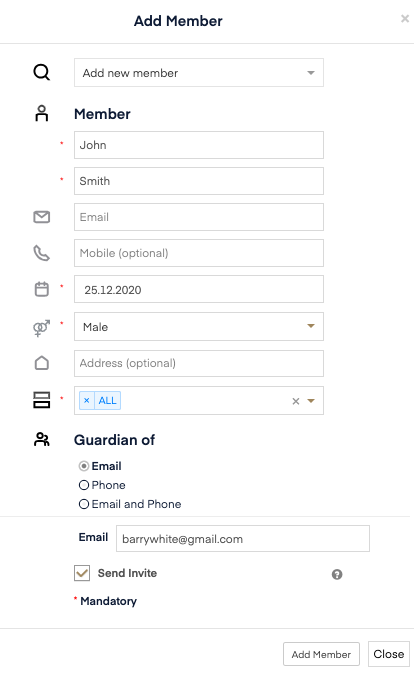
If the system cannot find the member, select Add new member and fill in the required information.
In the form make sure if it is a child to invite the guardian at the bottom of the screen so they can create an account and find the unpaid invoice.
Assign the Member to a Service Option
Once the member has been added then In the Subscriptions view, find the member’s name on the left-hand side and drag and drop it onto the desired service option on the right.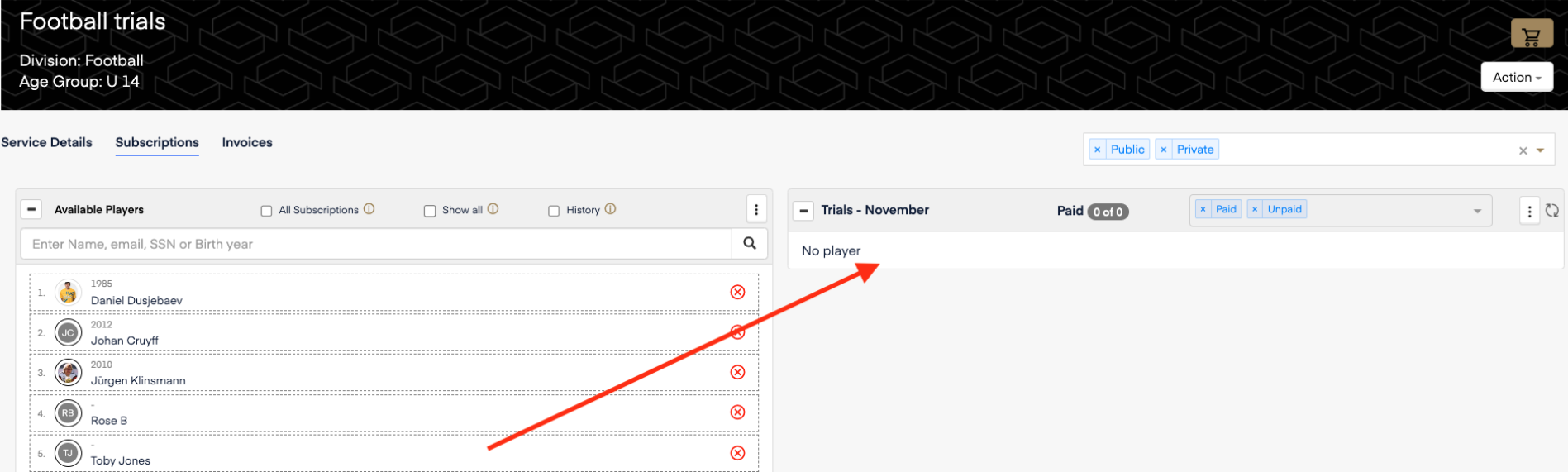
Review and Apply Discounts (if applicable)
A pop-up window will appear. If the member is eligible for a discount, you can apply it before confirming the registration.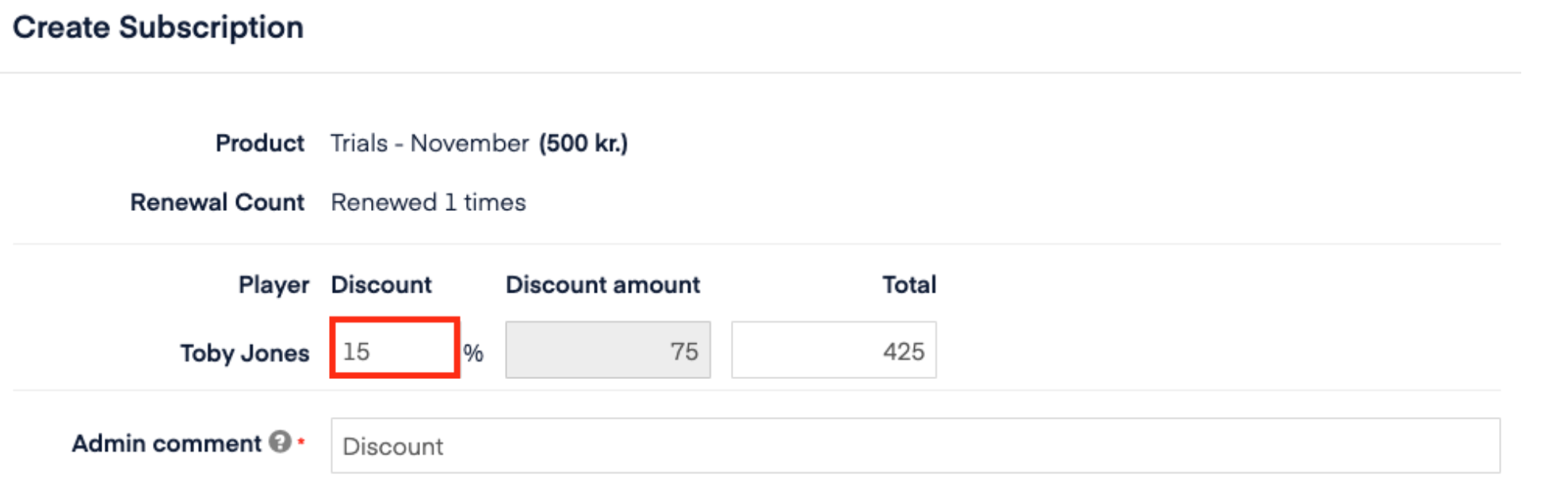
Invoice Generation
After completing the registration, an unpaid invoice will automatically be created in the member’s Abler account.
The invoice can then be paid by the member or their guardian if you are registering a child.
For step-by-step payment guidance for the member or guardian, see Paying an invoice in Abler.