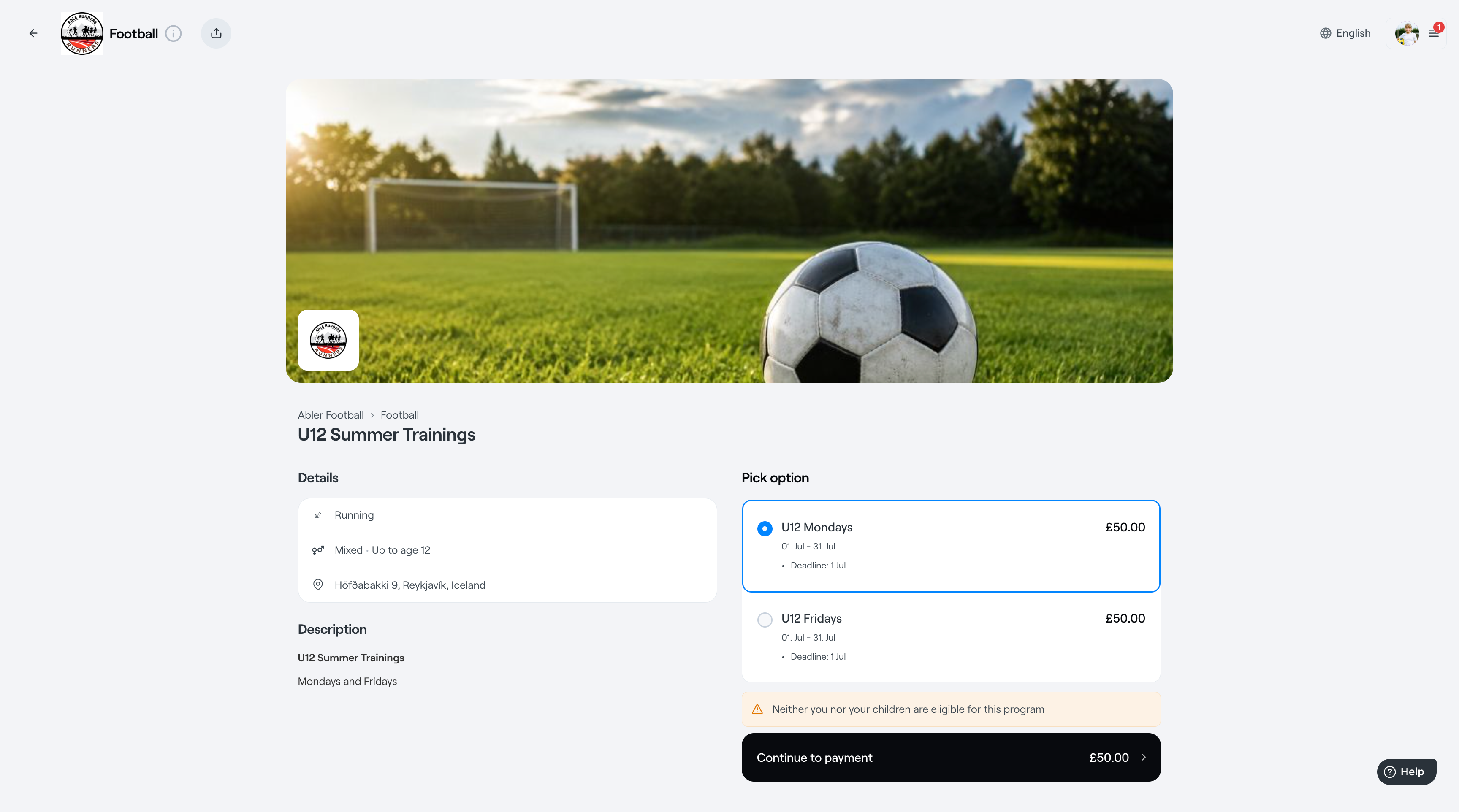
Programmes can be used for courses, trainings, camps, memberships, or any activity that members can register for.
1. Open Programmes
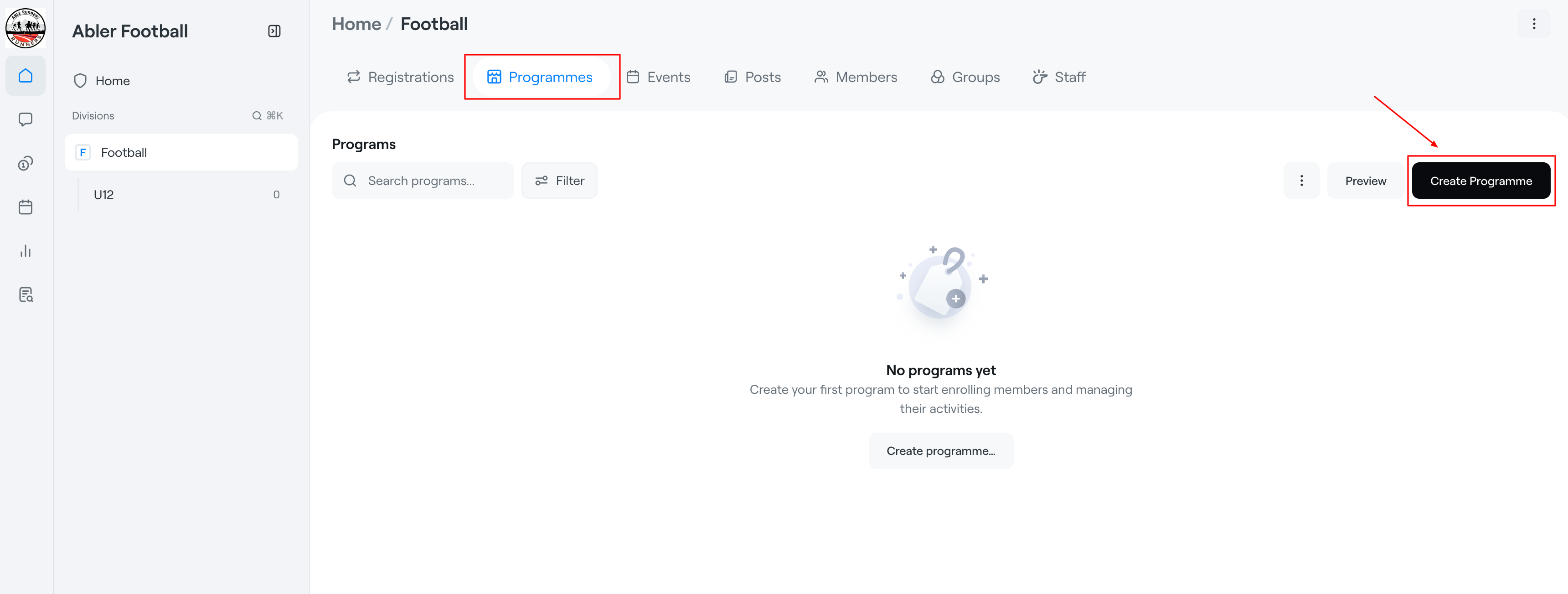
- Navigate to the Programmes tab.
- Click Create Programme.
2. Select a Group
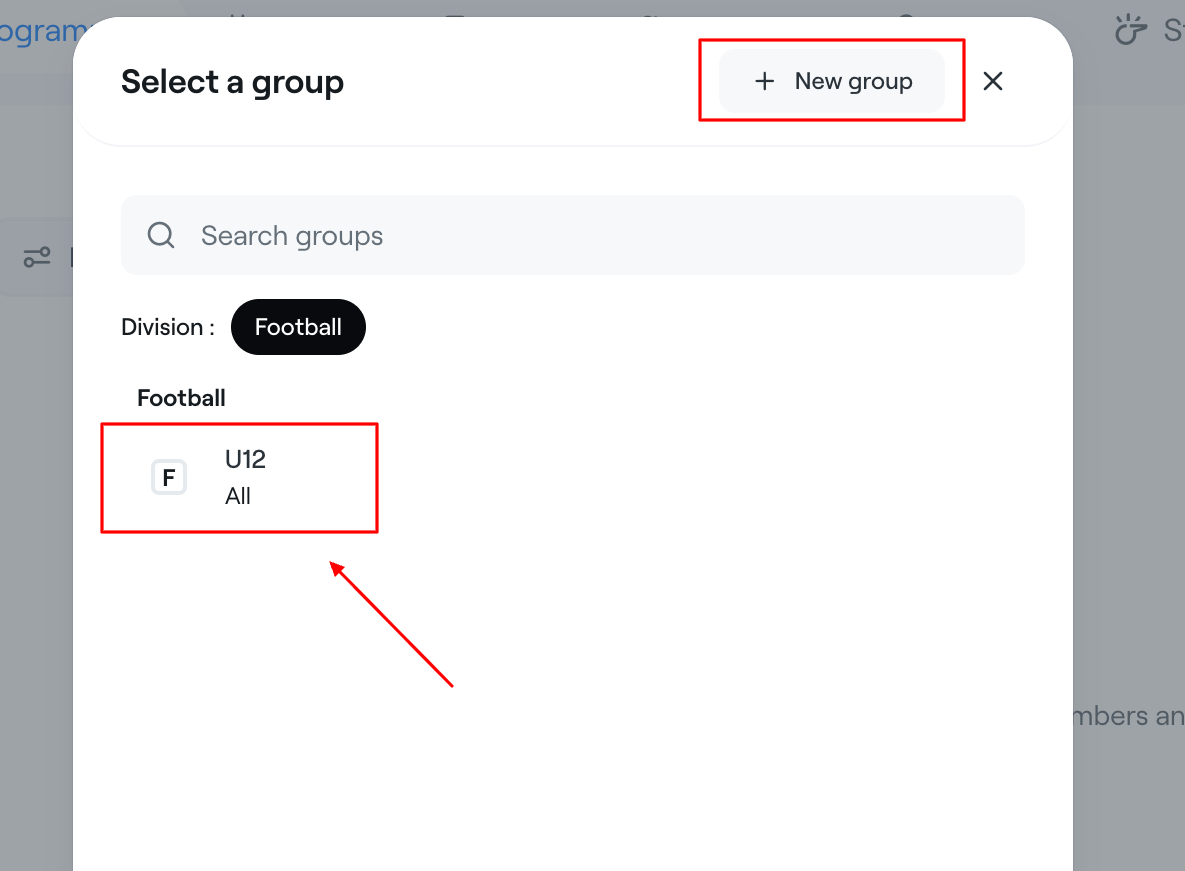
A "Select a Group" window will appear.
|  |
3. Enter Programme Details
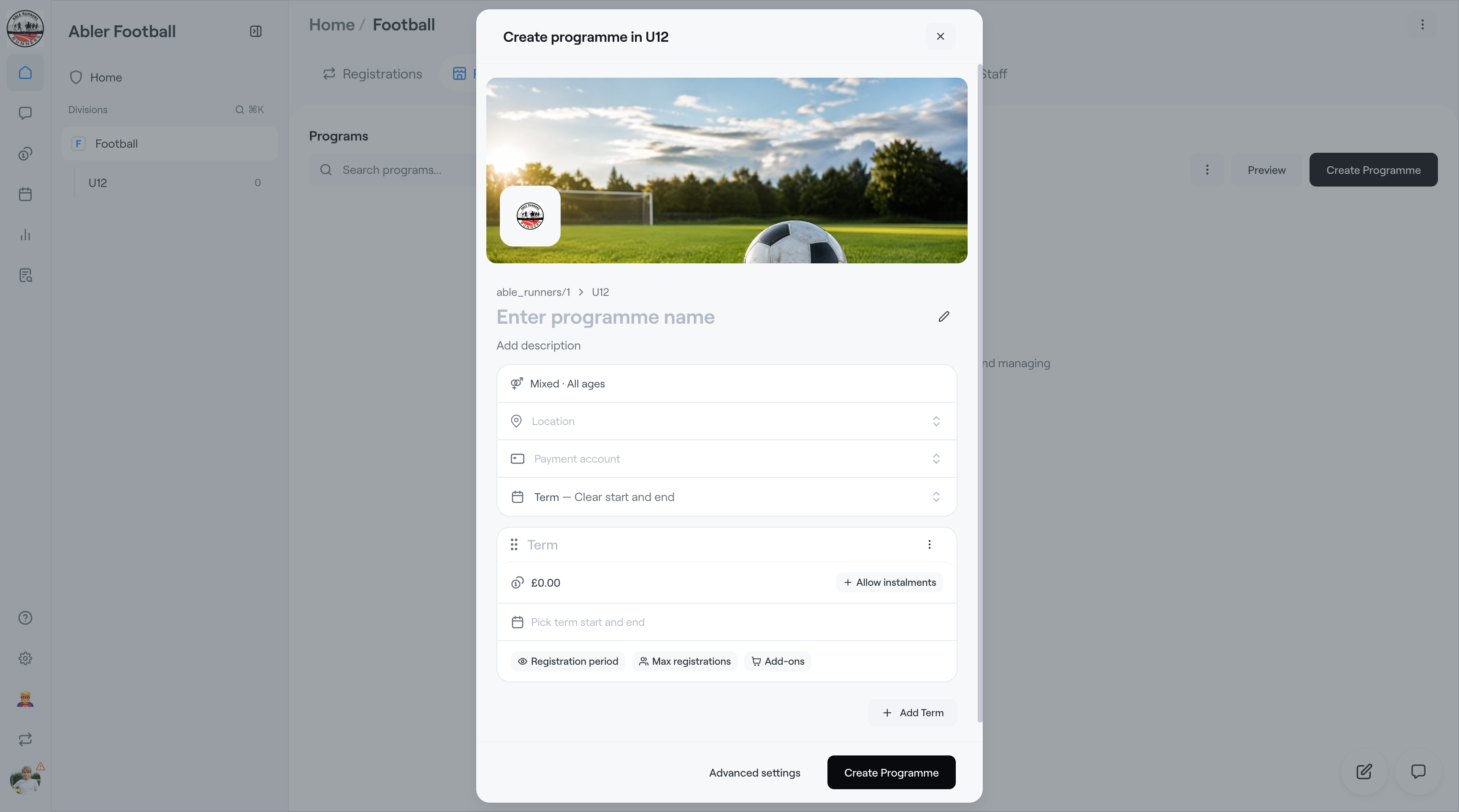
Upload an Image - This will present the service well in the Abler shop.
Programme Name
- Enter the name of the programme.
Examples:
- U12
- Goalkeeper Development Programme
Description
Add a short description explaining the purpose of the programme.
Basic Information
- Gender & Age group - Click on the "Mixed · All ages" section to expand the settings.
- Location - Select your venue.
- Payment account.
4. Choose the Programme Type
Under Term – Clear start and end, choose one of the following:
Term
- Courses
- Camps
- Seasonal programmes
- Fixed-duration training blocks
A Term programme has a defined start and end date.
Subscription
- Ongoing memberships
- Monthly training programmes
- Recurring payments
Participants are charged on a recurring schedule until they or the club cancel the subscription.
5. Configure the Term (Programme option)
Price: Enter the programme fee.
Registration Period: Registration opening date / Registration closing date
Maximum Registrations: Limit the number of participants.
Allow Instalments: Enable participants to pay in multiple instalments instead of one full payment.
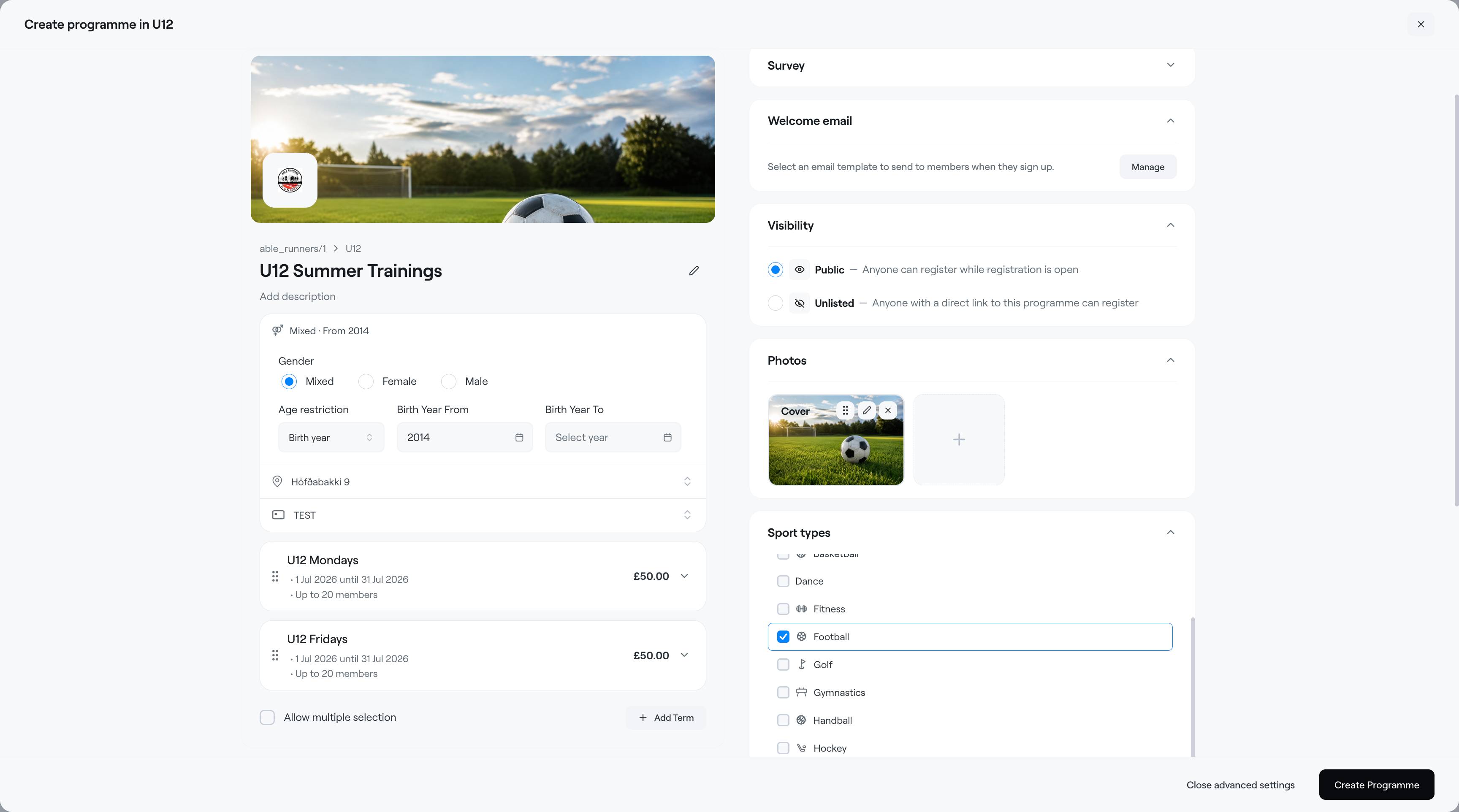
Add Term: Use Add Term to create multiple options within the same programme.
Example:
- U12 Mondays
- U12 Fridays
Advanced Settings
Click Advanced Settings to access additional programme options.
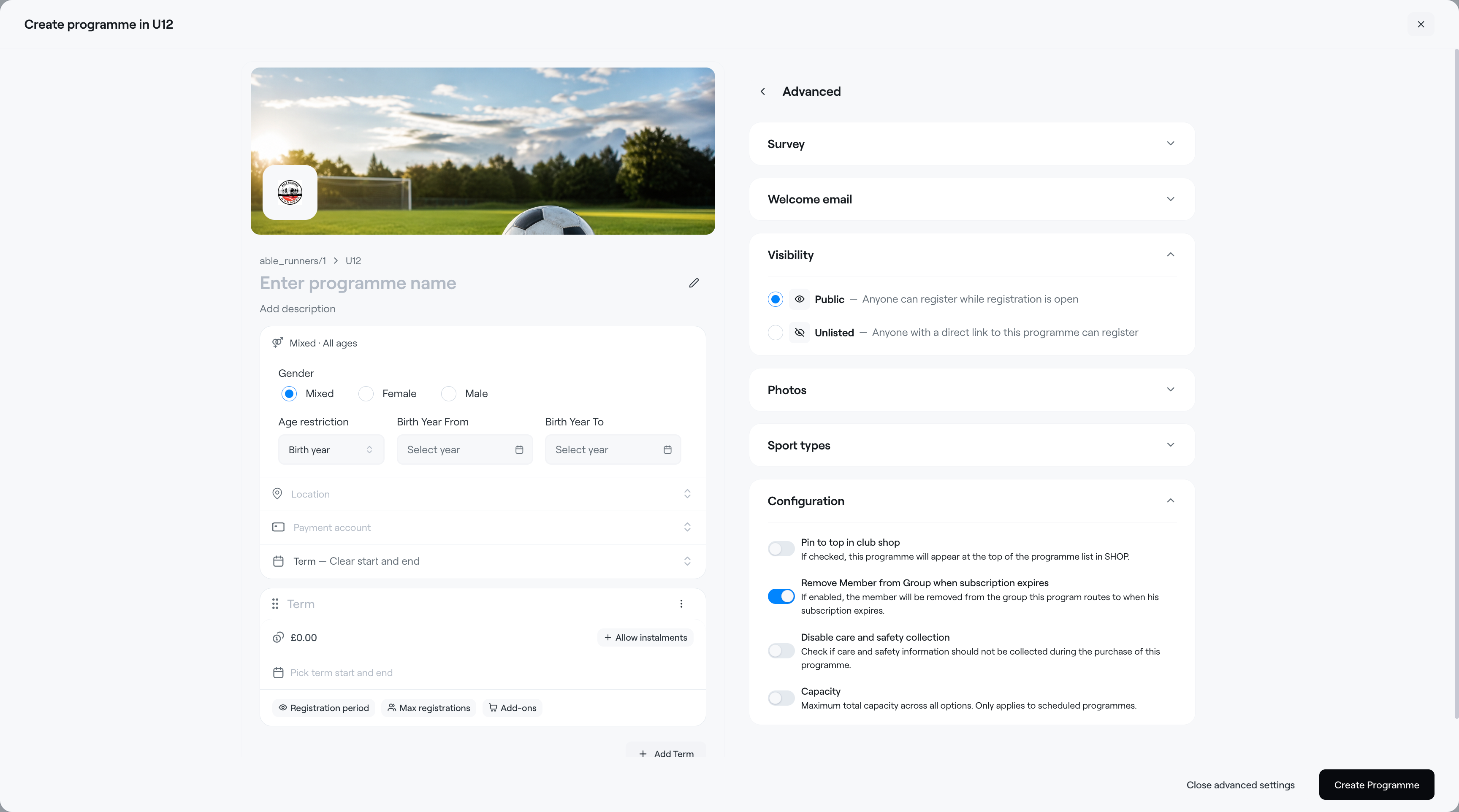
Survey - Add custom registration questions.
Welcome Email - Create an automatic email sent after registration.
Visibility - Control who can view the programme.
Photos - Manage photo settings for the programme, including visibility and uploads.
Sport Types - Select the sport or activity associated with the programme.
Example Programme Setup as a Term
Abler Marketplace