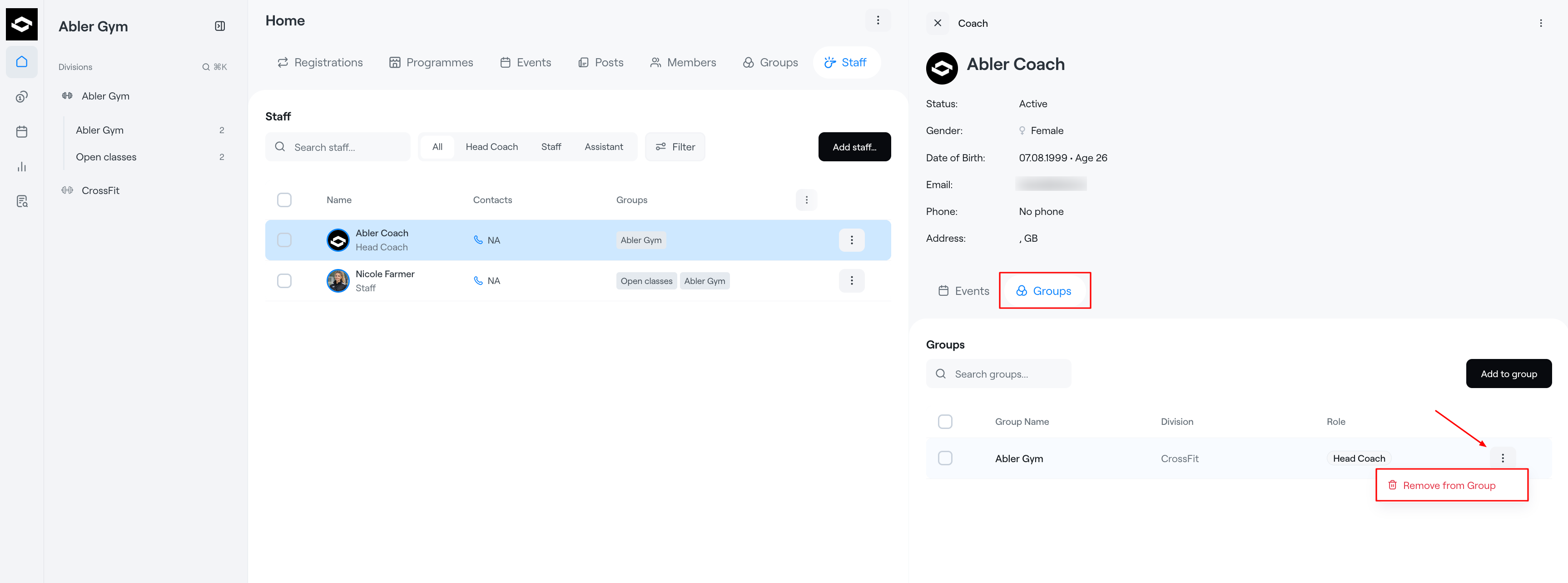
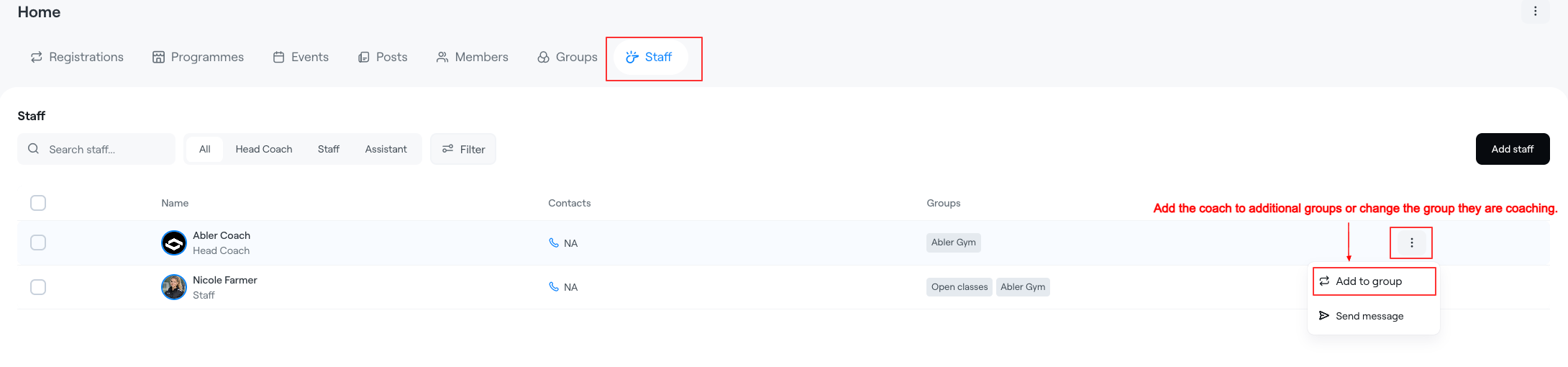
The Staff tab displays all coaches/staff within the selected club, division, or group. Use the Add Staff button to add coaches to groups within the club.
In the Staff tab you can view staff information, assigned roles, contact details, and connected groups.
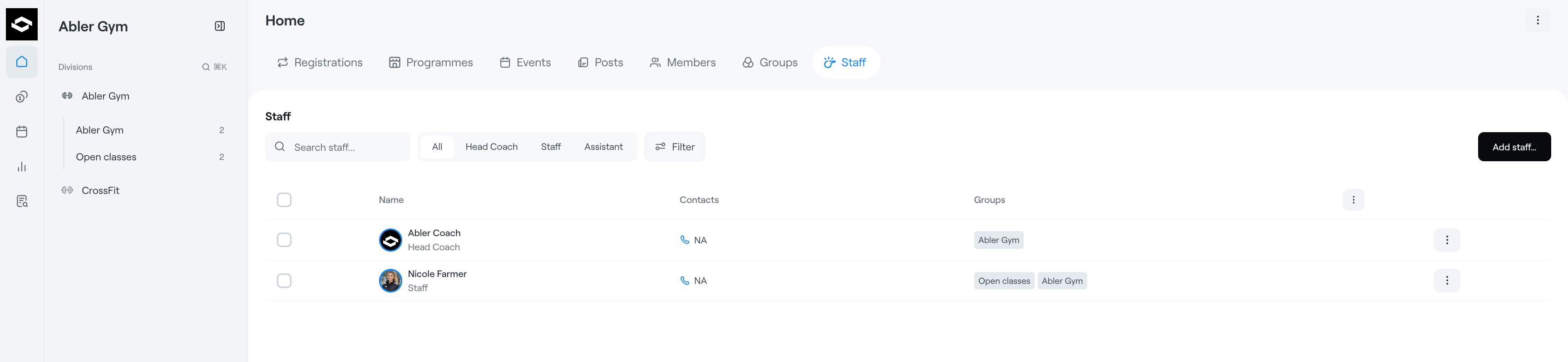
Filter Staff
Use the filter options at the top of the page to quickly filter staff members by role, such as:
- Head Coach
- Staff
- Assistant
This makes it easier to find specific team members within the organization.
Staff Roles
Each staff member can be assigned one or multiple roles depending on their responsibilities within the club or group.
Roles help define permissions and visibility inside Abler.
Add Coach
- Click the Add Staff button in the top-right corner at the club, division, or group level to add a coach.
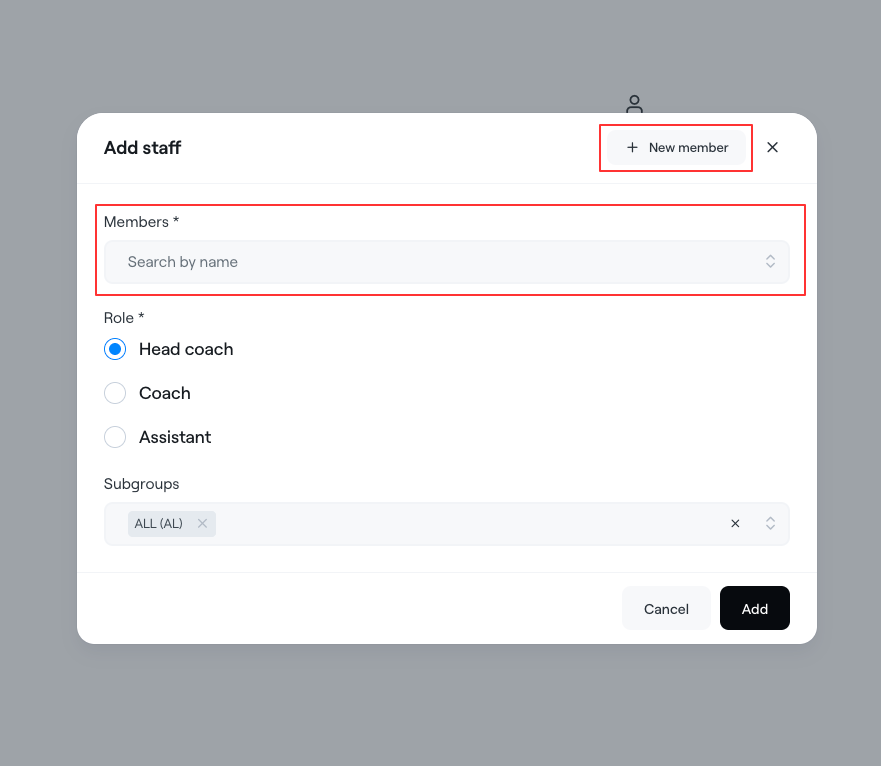
- If the user is already a member of the club, you can search for them by name. If they have not yet signed up for Abler, you can invite them by selecting New Member. Fill in all required information and click Create Staff. The user will then receive an invitation to create and verify their Abler account.
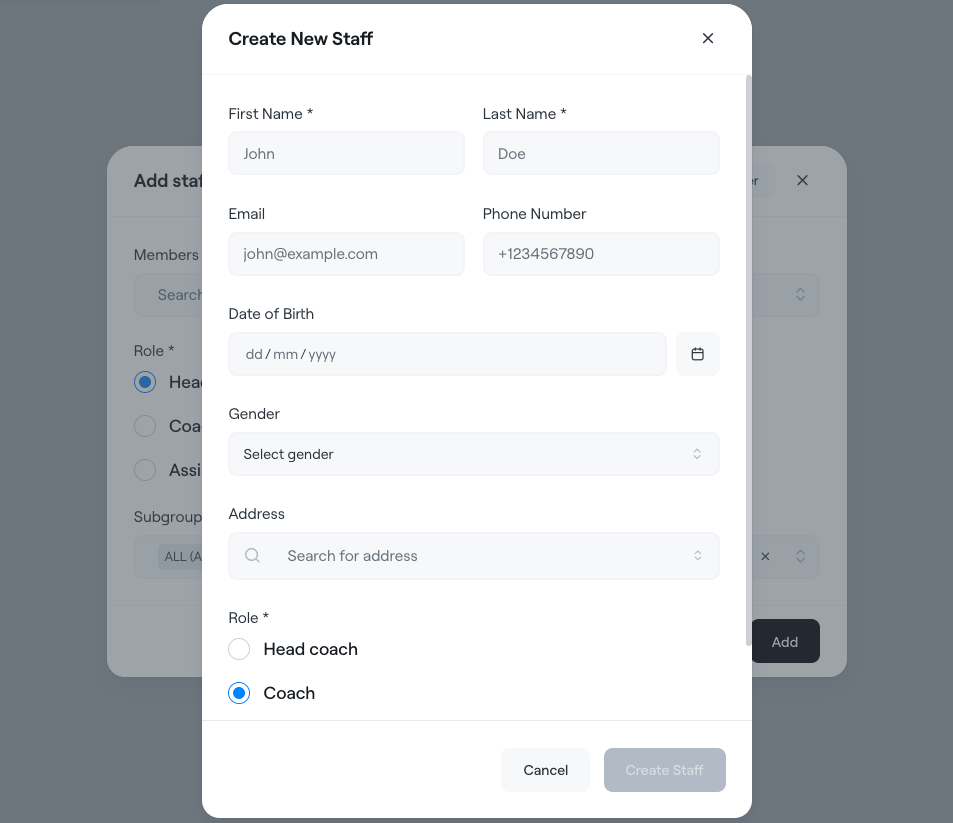
- After a coach has been added, they can view all information for the group they are assigned to within the app. Coaches can currently be assigned to training sessions and events.
If you only need to add the coach to a single group, choose the Group level. If you need to add the coach to multiple groups within the same division, choose the Division level. If you need to add the coach across multiple divisions, choose the Club level. It is always possible to edit a coach's assignments from the division where they are registered as a staff member.
Remove Staff from a Group
To remove a staff member from a group:
- Select the staff member you want to manage
- In the side panel, open the Groups section
- Select the relevant group
- Click the three-dot menu next to the group
- Select Remove from Group
Removing a staff member from a group will remove their role and access within that specific group only.