
Create a training schedule for your team by setting up a comprehensive training plan for specific groups. Training plans can span weeks or months, giving members and their guardians clear visibility of upcoming sessions. You can also define default attendance expectations to simplify attendance tracking and update attendance records after each session.
Note: Training plans can be created at the Division level and Group level, but not at the Club level.
Create a Training Plan
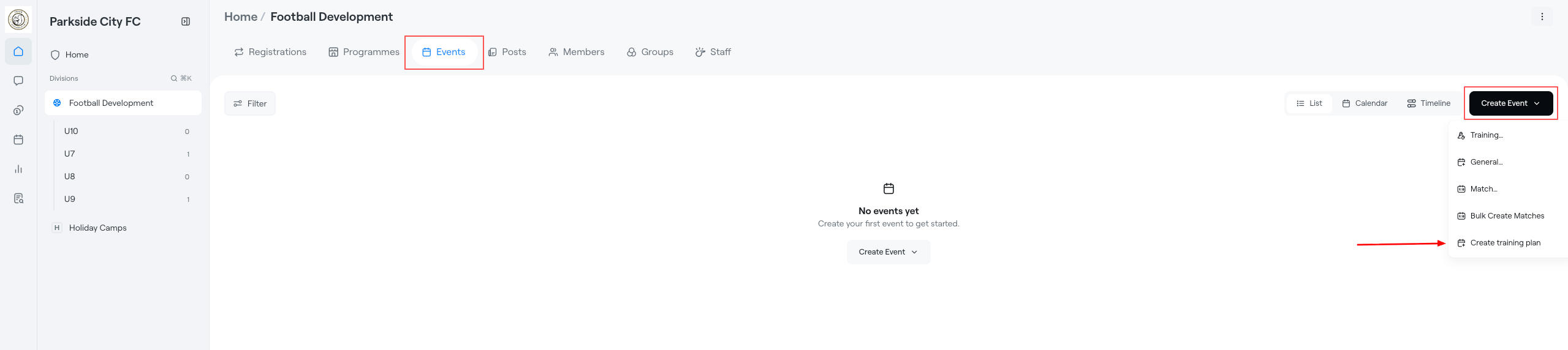
- Navigate to the relevant Division or Group from the left-hand menu.
- Select Events from the top navigation.
- Click Create Event in the top-right corner.
- Select Create training plan from the dropdown menu.
Configure the Training Plan
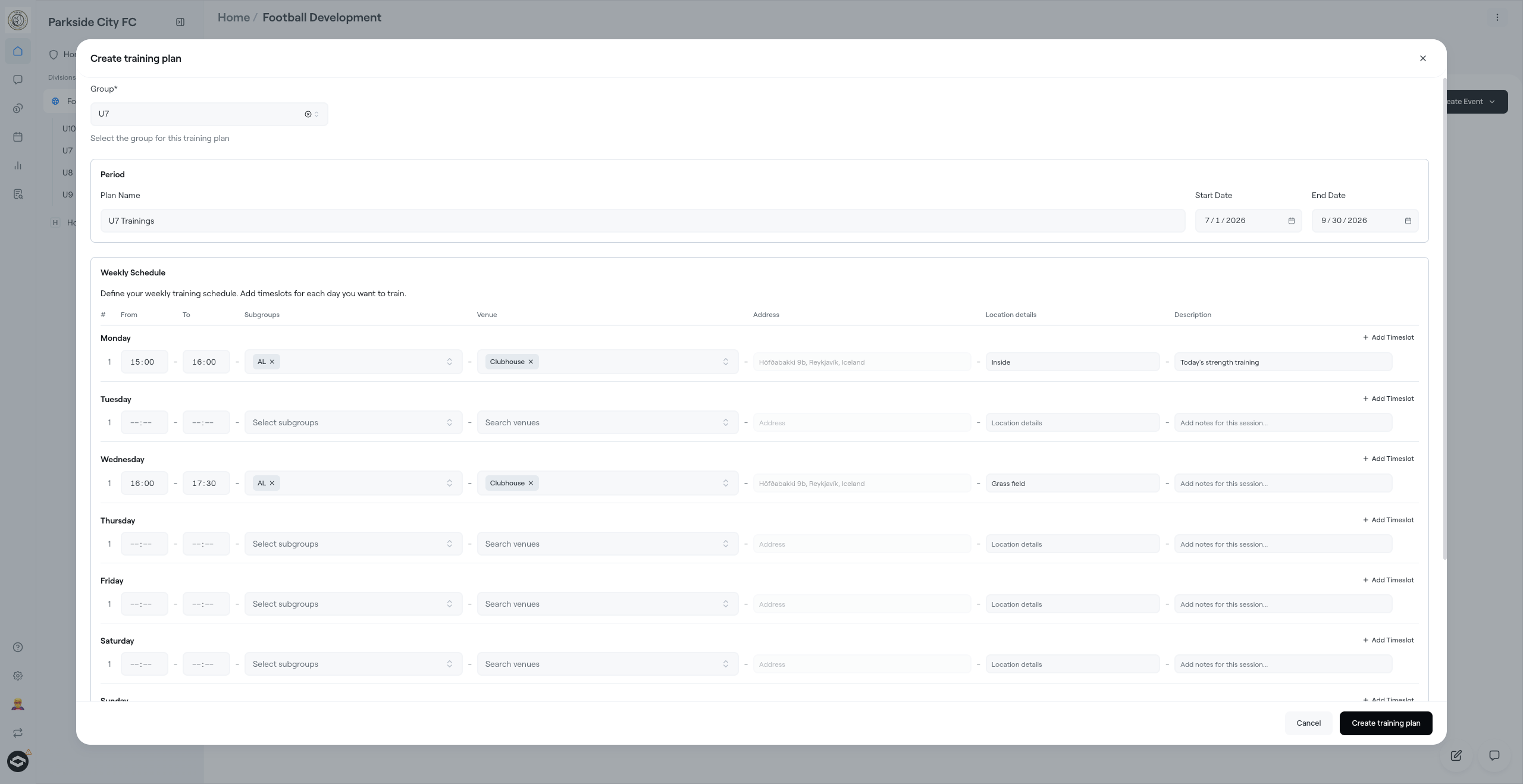
1. Select a Group
Choose the group that the training plan will apply to.
2. Define the Training Period
Enter:
- Plan Name
- Start Date
- End Date
The training plan will generate sessions within the selected date range.
3. Build the Weekly Schedule
For each training day:
- Enter the Start Time and End Time.
- Select the relevant Subgroups.
- Choose a Venue.
- Add an Address and Location Details if required.
- Add session-specific notes in the Description field.
- Click Add Timeslot to create additional sessions on the same day.
Repeat this process for each day of the week that training takes place.
4. Configure Attendance and Notifications
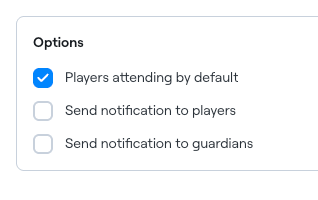
Under Options, you can choose to:
- Players attending by default – marks all players as attending unless changed later.
- Send notification to players – notifies players when the training plan is created.
- Send notification to guardians – notifies guardians when the training plan is created.
Create the Plan
Once all details have been entered, click Create training plan.
The system will generate all training sessions based on the schedule you've configured. Players and guardians will be able to view the sessions in their calendars, and attendance can be managed for individual sessions as needed.