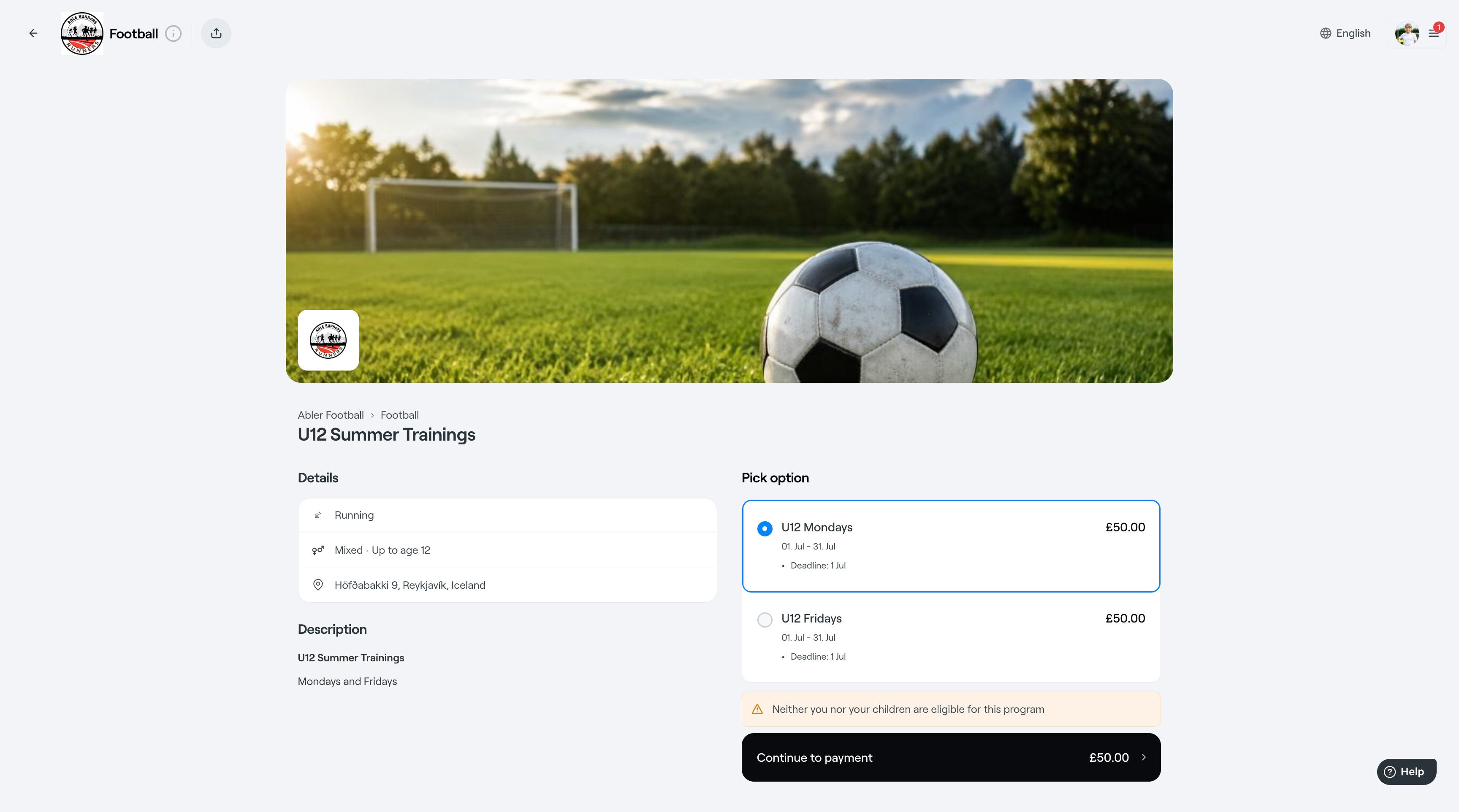
The Programme tab is intended for administrators to manage all programmes within the club or selected division. From this tab, admins can view available programmes, see who is registered for each programme, create new programmes with either free or paid registration, edit existing programmes, and clone programmes.
Programs are any type of club offerings you want to promote on your club web shop.
To view your existing programs in the web shop, go to the Programs page of your Club or Division and Click Preview
To add a new program, go to the Programs page of your Division and Click Create Programme.
Programmes can be used for courses, trainings, camps, memberships, or any activity that members can register for.
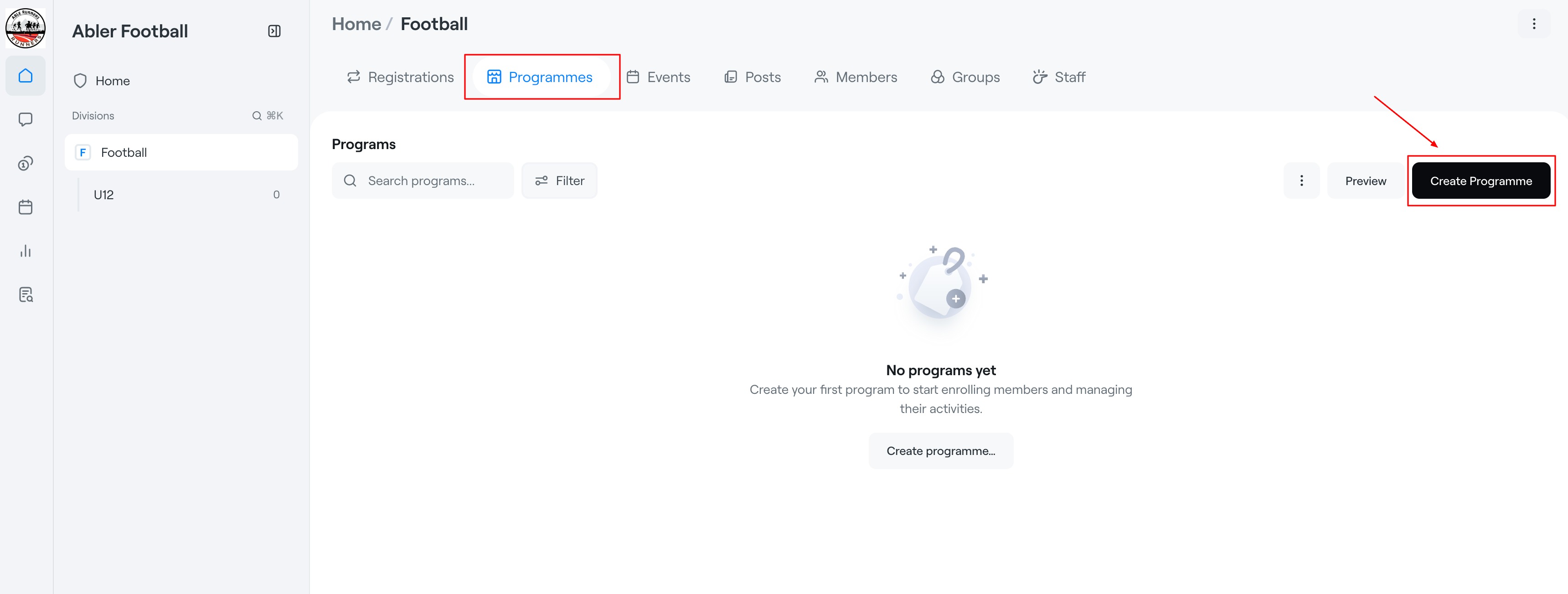
1. Open Programmes
- Navigate to the Programmes tab.
- Click Create Programme.
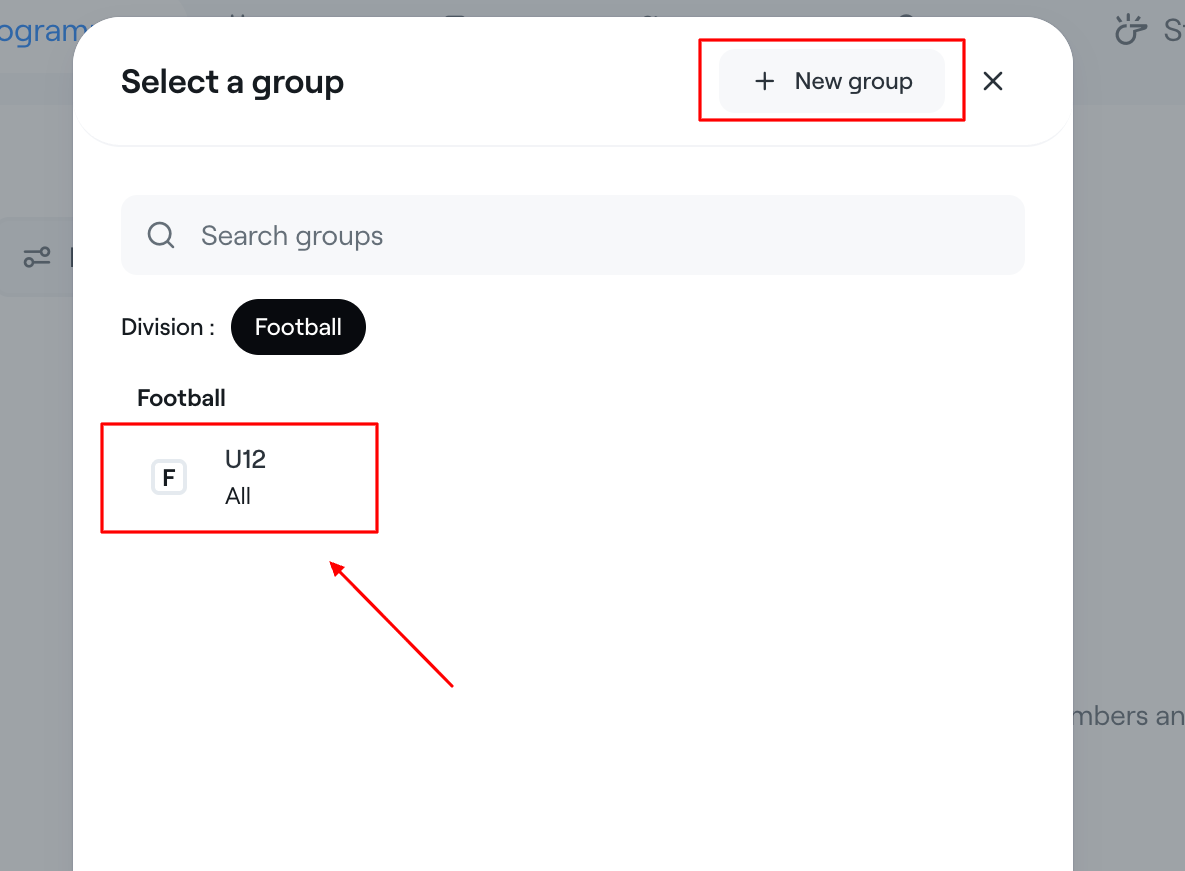
2. Select a Group
A "Select a Group" window will appear.
|  |
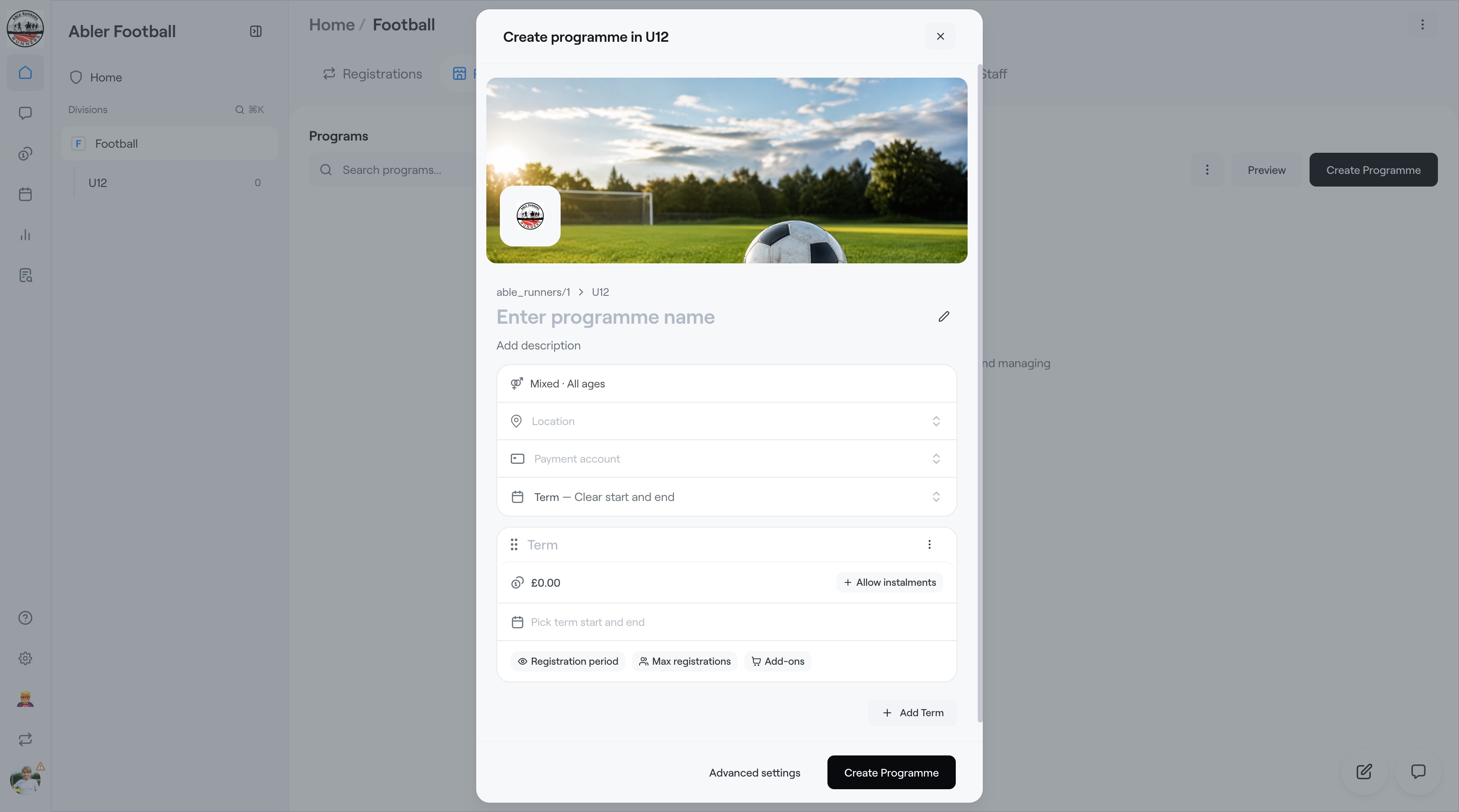
3. Enter Programme Details
Upload an Image - This will present the service well in the Abler shop.
Programme Name
- Enter the name of the programme.
Examples:
- U12
- Goalkeeper Development Programme
Description
Add a short description explaining the purpose of the programme.
Basic Information
- Gender & Age group - Click on the "Mixed · All ages" section to expand the settings.
- Location - Select your venue.
- Payment account.
4. Choose the Programme Type
Under Term – Clear start and end, choose one of the following:
Term
- Courses
- Camps
- Seasonal programmes
- Fixed-duration training blocks
A Term programme has a defined start and end date.
Subscription
- Ongoing memberships
- Monthly training programmes
- Recurring payments
Participants are charged on a recurring schedule until they or the club cancel the subscription.
5. Configure the Term (Programme option)
Price: Enter the programme fee.
Registration Period: Registration opening date / Registration closing date
Maximum Registrations: Limit the number of participants.
Allow Instalments: Enable participants to pay in multiple instalments instead of one full payment.
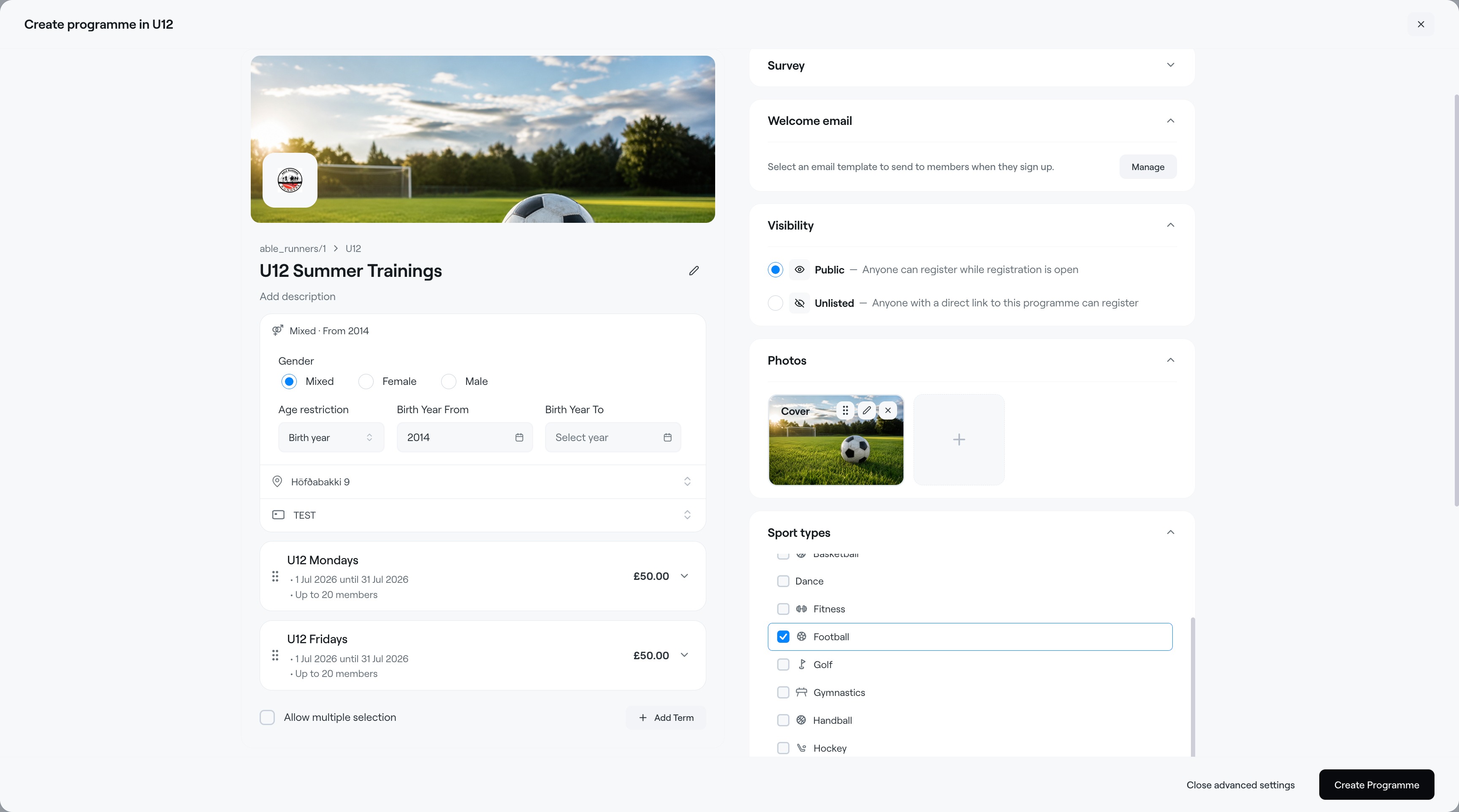
Add Term: Use Add Term to create multiple options within the same programme.
Example:
- U12 Mondays
- U12 Fridays
Advanced Settings
Click Advanced Settings to access additional programme options.
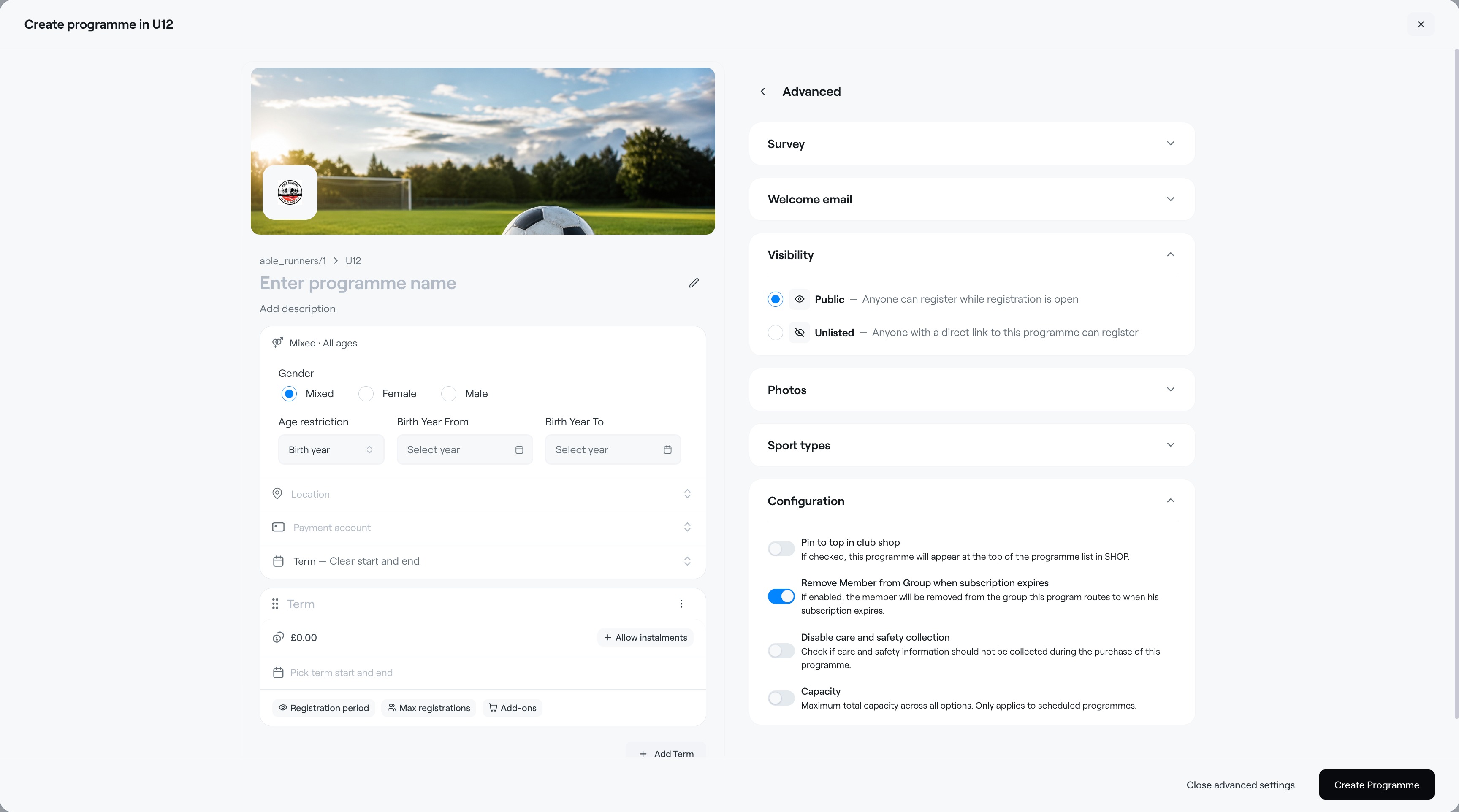
Survey - Add custom registration questions.
Welcome Email - Create an automatic email sent after registration.
Visibility - Control who can view the programme.
Photos - Manage photo settings for the programme, including visibility and uploads.
Sport Types - Select the sport or activity associated with the programme.
Example Programme Setup as a Term
Abler Marketplace