Note: To add or edit venues, you must have the Club Admin role.
Venues are the locations or facilities your club uses for classes, events, and activities, such as gyms, sports halls, meeting rooms, or outdoor areas. By adding venues to the system, admins and coaches can easily select the correct location when organising activities and events, while members get clear visibility of where activities take place.
Add a new venue
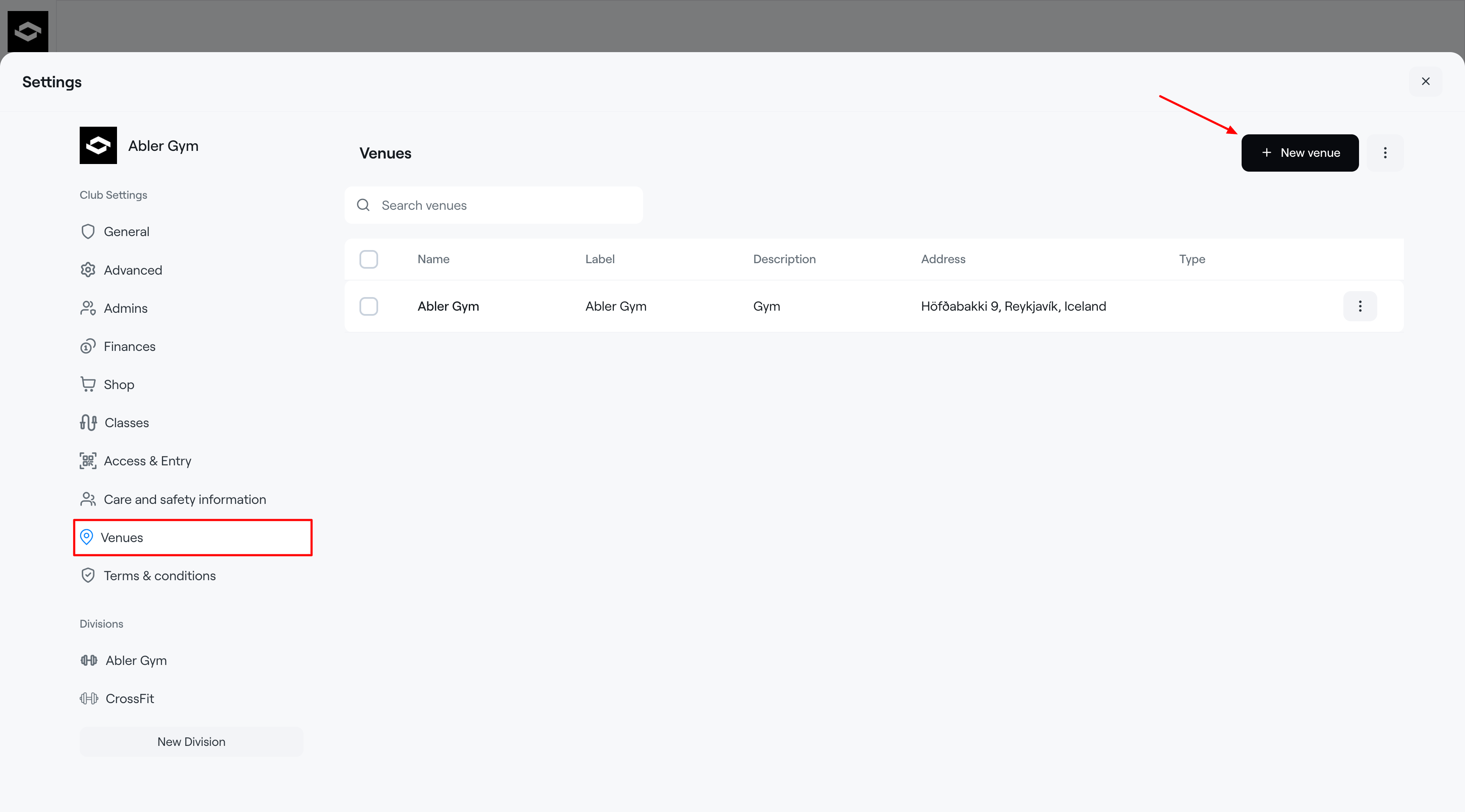
- Go to Settings in the bottom-left corner.
- Select Venues in the left-hand menu.
- Click + New venue.
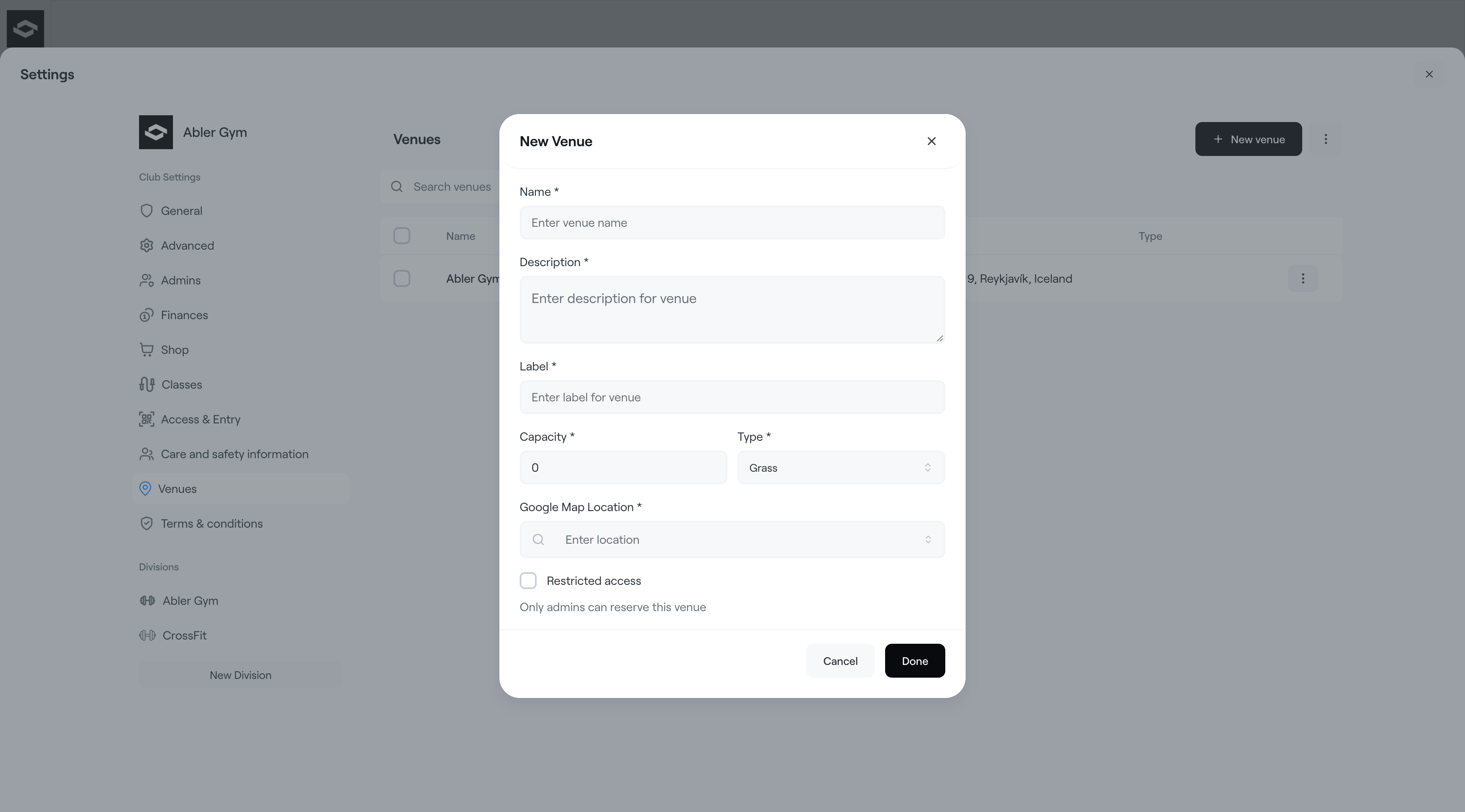
- Fill in the venue details:
- Name: The venue name shown in the system.
- Description: A short description of the venue.
- Label: The short name shown in calendars or venue lists.
- Capacity: The number of people the venue can accommodate.
- Type: Select the venue type.
- Google Map Location: Add the location for easy reference, so coaches don't have to search for it. Start typing to search for the location. Participants and guardians will be able to view the location right away.
- Restricted access: Select this if only admins should be able to use the venue.
- Click Done to save the venue.
Edit or delete a venue
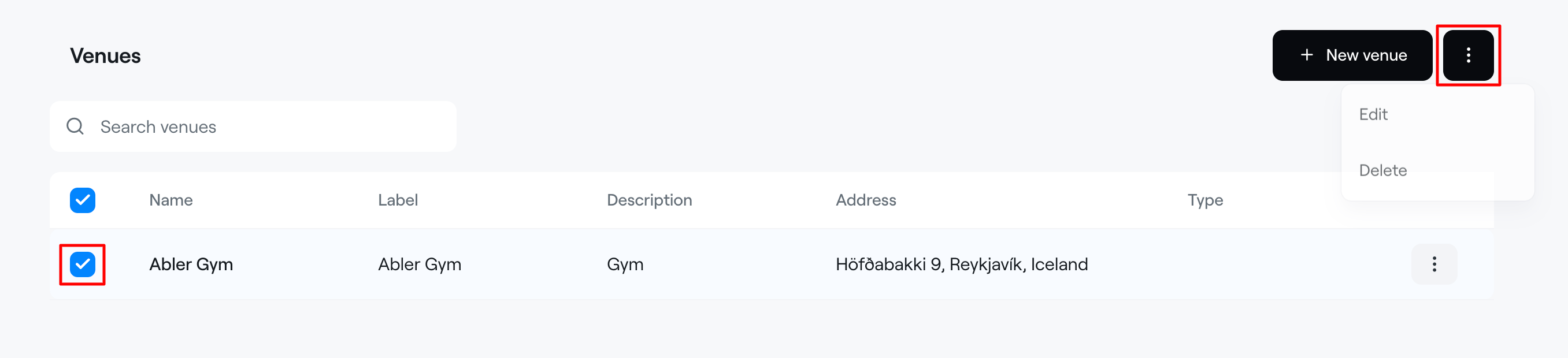
- Go to Settings > Venues.
- Select the venue by ticking the checkbox next to it.
- Click the three-dot menu in the top-right corner.
- Choose Edit or Delete.
- If editing, update the venue details and click Done to save.