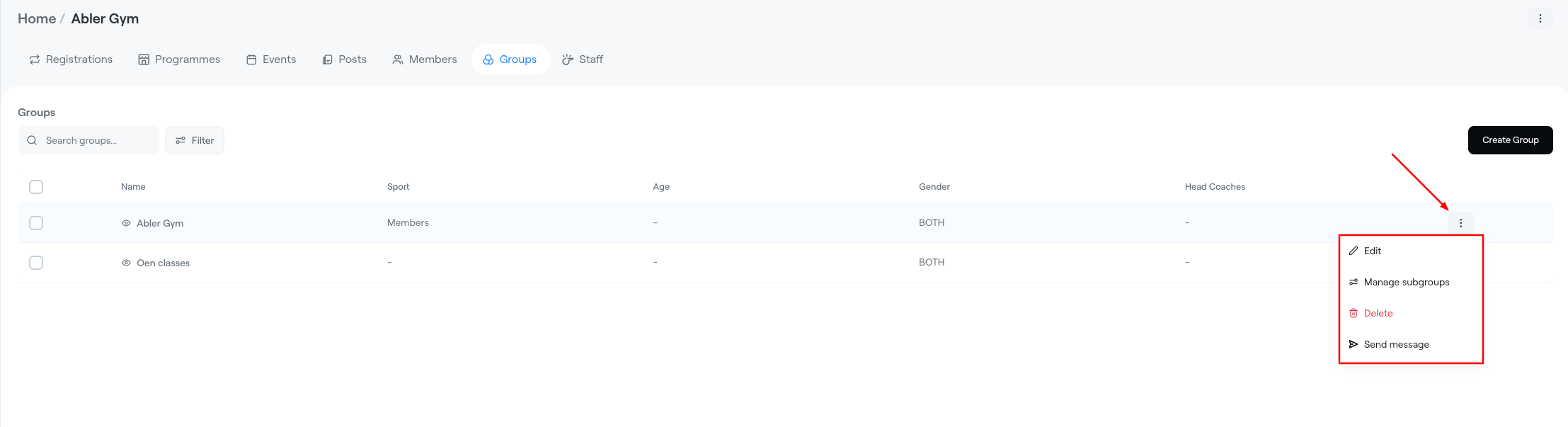
Groups are used to categorise participants, making it easier to manage teams, events, and training programs. Common groups might include "Under 10", "Under 18", or "Holiday Camp", and you can further divide them into smaller subgroups for specialised training or competitions.

When creating a service/product for sale (such as a membership fee, subscription, or camp), it's important to attach the correct group to it. This ensures that all registrations are automatically assigned to the appropriate group, allowing you to easily schedule events, track attendance, and manage communications.

By organising groups effectively, your organisation can communicate more efficiently with players and their guardians – for example, by scheduling events and sending targeted messages and updates to the relevant groups.
To create a group:
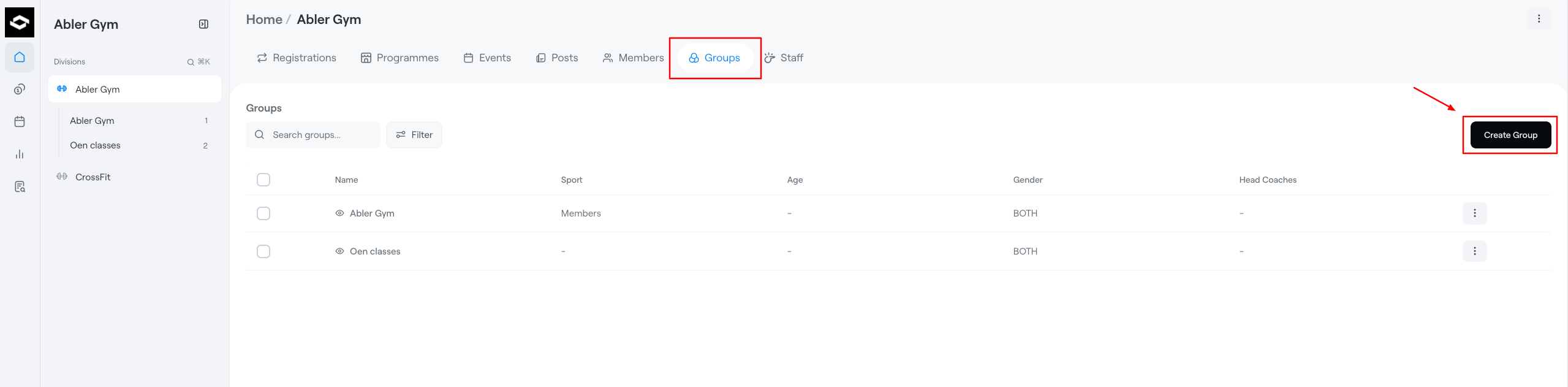
- In the left-hand side menu, go to the relevant division and open the Groups tab.
- Select Create Group in the top-right corner.
- In the Create Group window, enter the group name.
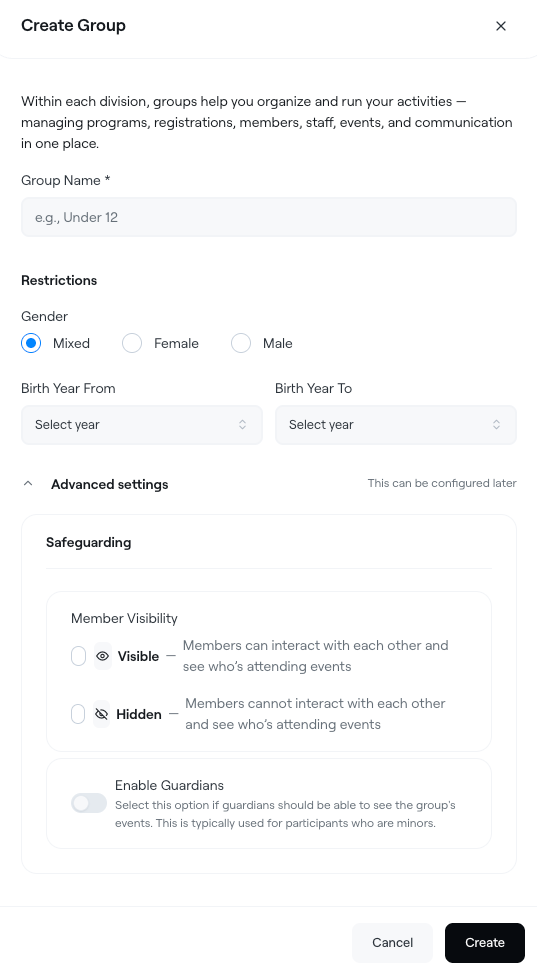
- Select the relevant restrictions:
- Gender: Mixed, Female, or Male
- Birth Year From / To: Select the relevant age range, if applicable
- Open Advanced settings to configure additional group settings, including:
- Members visibility: This setting controls the visibility of the group's members. The default option allows members to see each other, while the hidden option prevents members from viewing other members in the group.
- Guardians Enabled: Select this option if guardians should be able to see the group's events. This is typically used for participants who are minors.
- Select Create to save the group.
Editing and deleting groups
If you need to adjust the privacy of a group or make other updates, you can edit the group.
To edit a group:
- Select the Group you want to edit.
- Select the three-dot menu on the right side of the group row.
- Select Edit.
- Update the group settings as needed.
To delete a group:
- Select the Group you want to delete.
- Select the three-dot menu on the right side of the group row.
- Select Delete.
- Confirm the deletion.