
Need to update emergency contacts, medical information, or consent forms? You can easily manage these details for yourself or your children directly through the Abler app. Follow these three simple steps to keep member profile up to date.
Step-by-Step Instructions
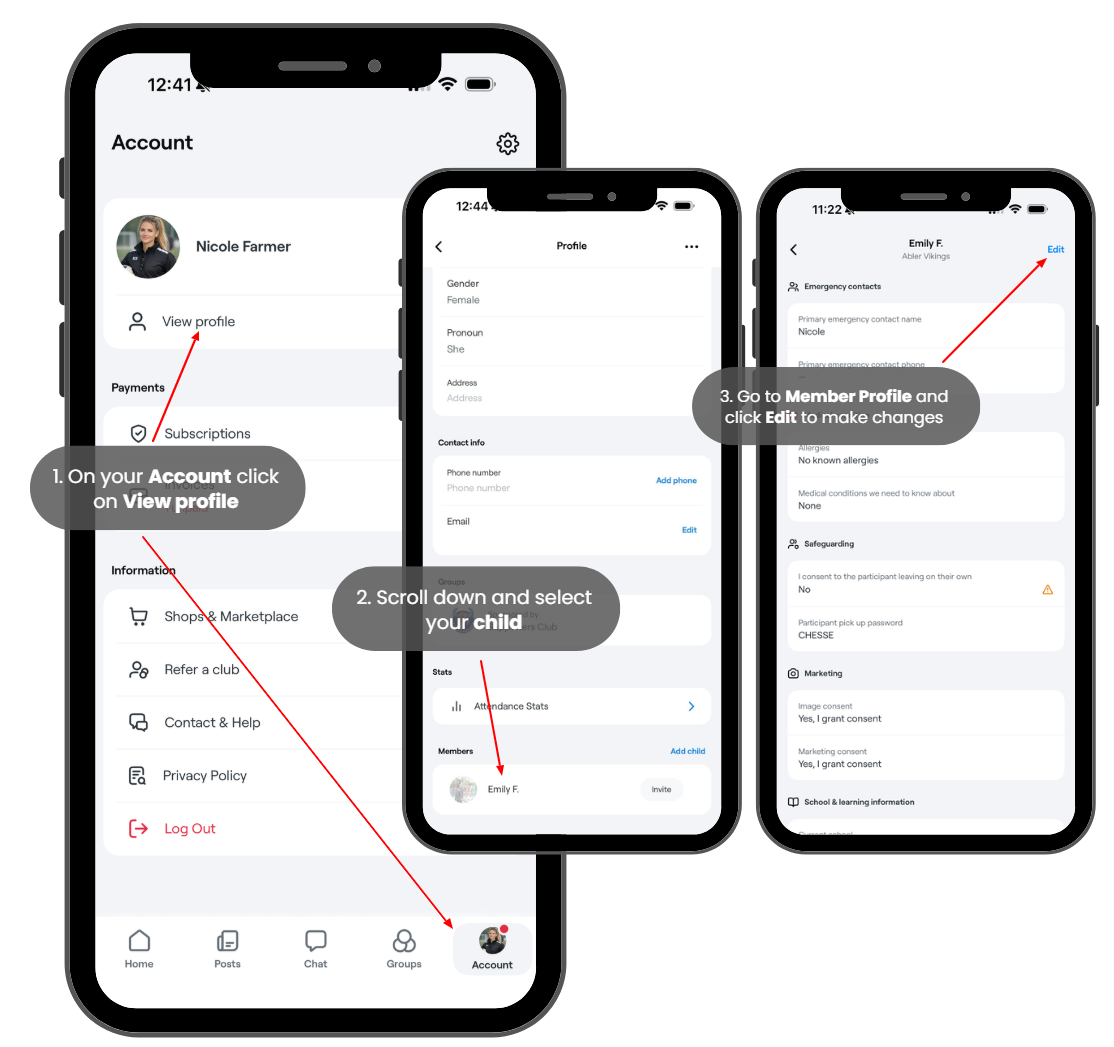
1. Open your Profile Settings Go to the Account tab in the bottom right corner of your screen. From the main account menu, click on View profile (located just below your name).
2. Select the Member or Child Once in your profile, scroll down to the Members section. Here you will see a list of everyone linked to your account. Simply click on the child or member whose details you wish to update.
3. Edit and Update Information On the member's specific profile page, click the Edit button in the top right corner. You can now modify various sections, including:
Emergency Contacts: Update names and phone numbers.
Medical Info: Add or change allergies and medical conditions.
Safeguarding: Update pick-up passwords and permissions.
Consents: Manage marketing and image consent preferences.
Note: Don't forget to hit Save (if prompted) after making your changes to ensure all information is updated in the system for your club or coaches.
Alternative Method: During Checkout
Need to update these details while registering for a new session? Guardians can also edit member profile information during their next purchase at the club shop. Before finalizing your payment, you’ll be prompted to review and update any required fields, ensuring your information is current for the upcoming programs.