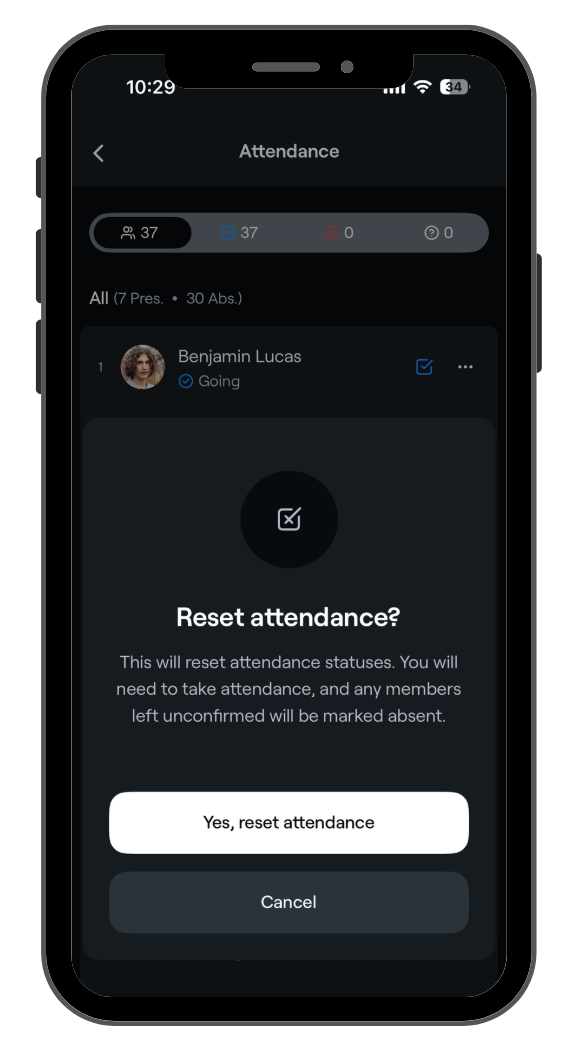
Coaches can clear (reset) attendance on an event in the Abler app.
This is useful when you want to mark who is actually present at the session, regardless of whether members previously responded as going, not going, or didn’t respond.
Clearing attendance gives you a clean attendance list so you can accurately mark who is present.
What happens when I reset?
- Player/Guardian/Coach status is preserved: Any status previously set by a member, guardian or a coach will be preserved.
- Default to Absent: Cleared entries will appear in gray. If a coach does not manually update these entries by the end of the session, they will automatically default to 'Absent'.
How to clear attendance
1. Open the Abler app and tap the blue checklist icon on the event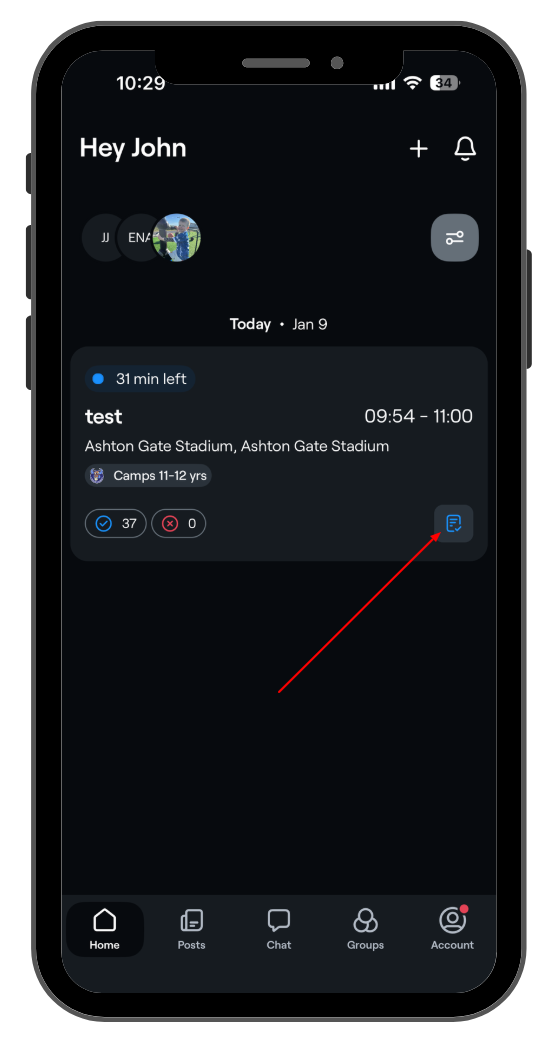
2. Open event actions and Tap the three-dot / settings icon on the event.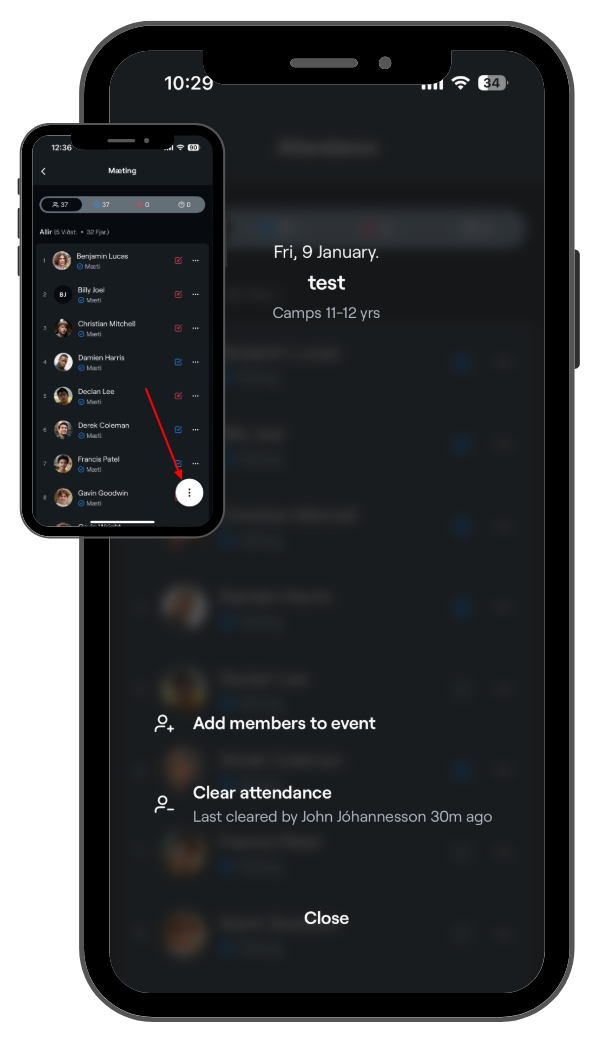
3. Clear attendance - Tap Clear attendance and confirm by selecting Yes, reset attendance.